Note types
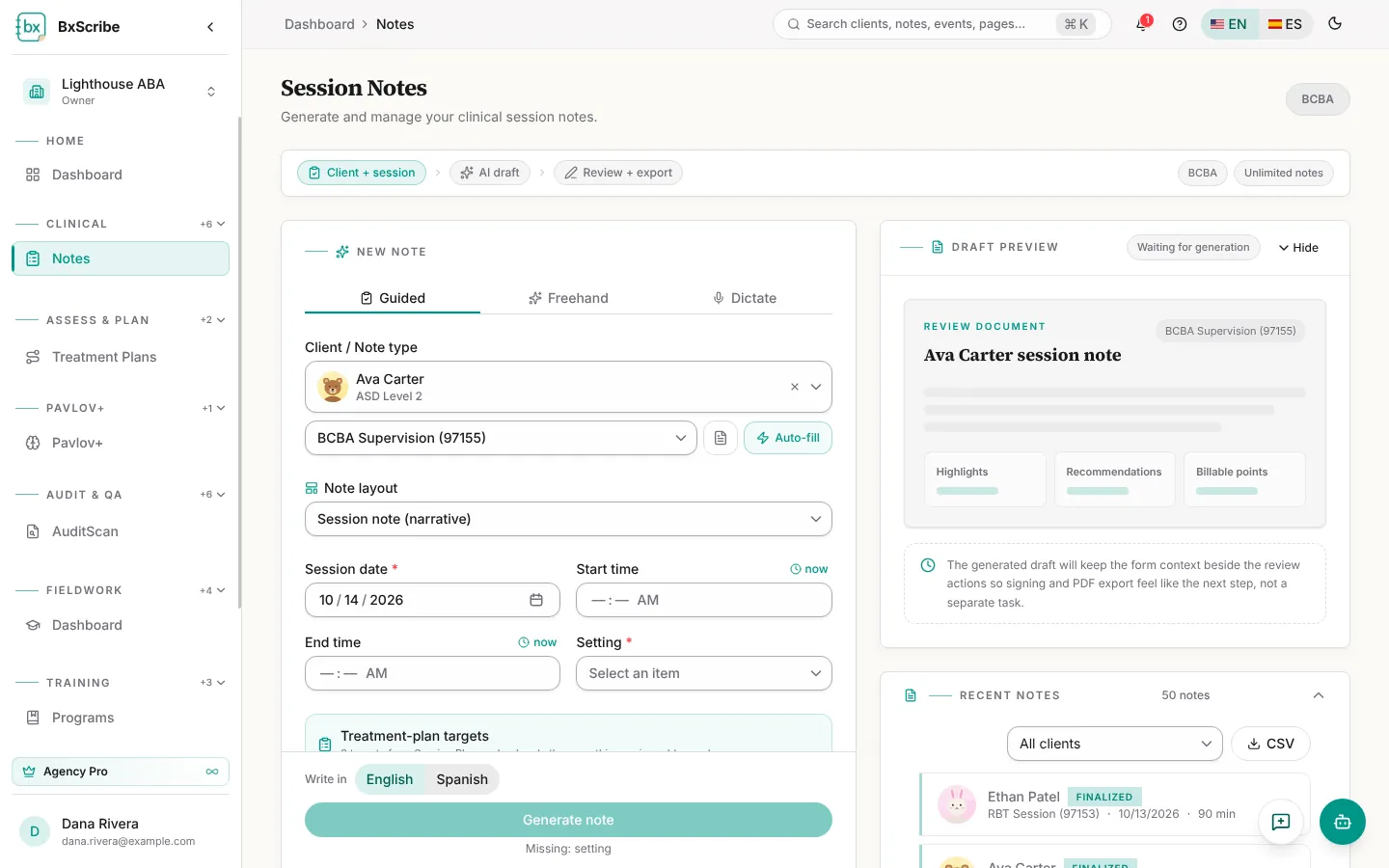
Open Notes from the Clinical group. The note types you see depend on your credential: RBTs and BTs document 97153, BCaBAs document the codes their agency allows, and BCBAs can document all of them.
- RBT Session (97153) — direct treatment.
- BCaBA Supervision (97155HN) and BCBA Supervision (97155) — protocol modification and supervision.
- Caregiver Training (97156) — family guidance.
- Assessment (97151) — on paid plans, when your credential allows it.
Start a note
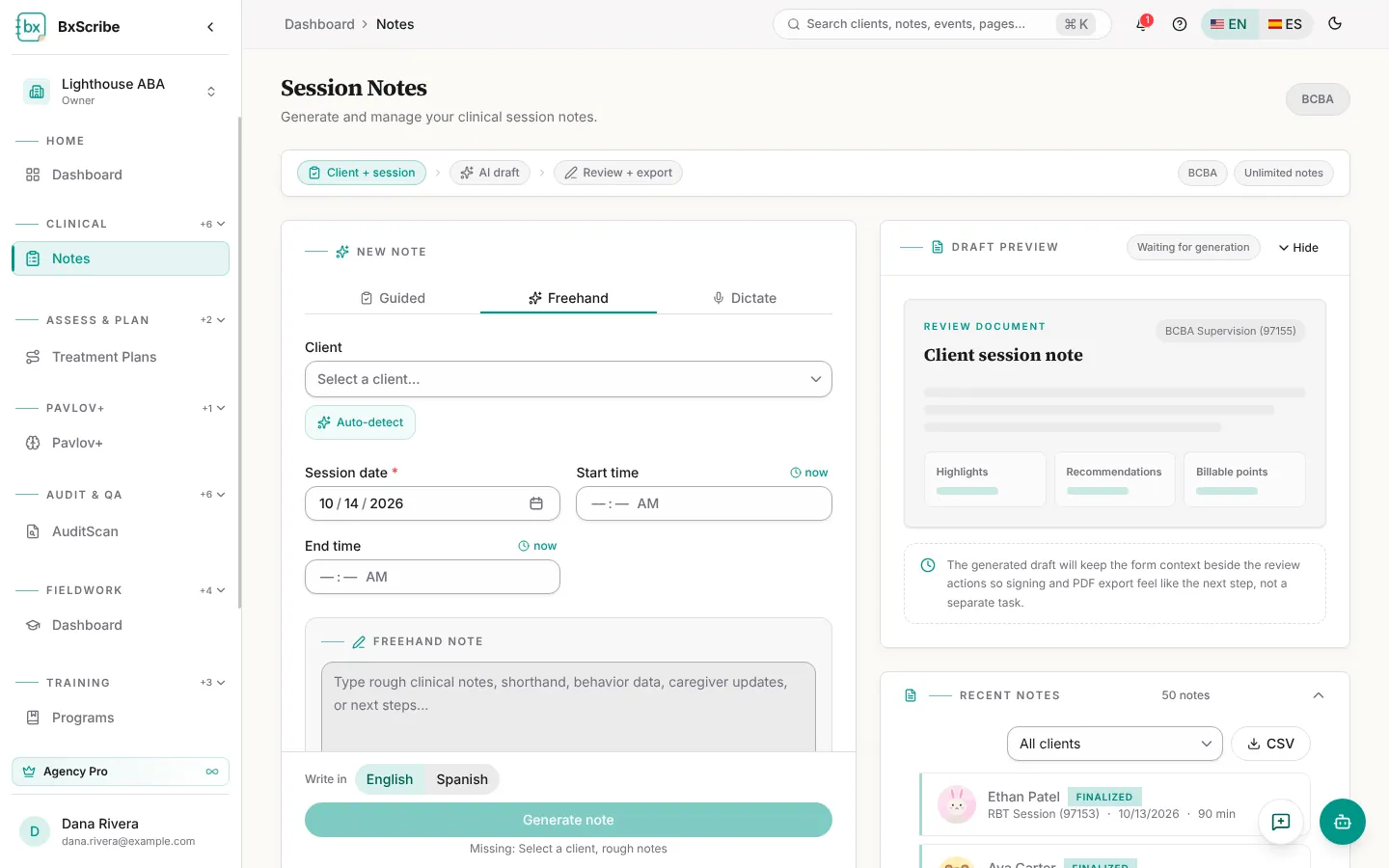
The workflow strip at the top tracks your progress: Client + session, AI draft, Review + export. The New note form is on the left and the draft preview on the right.
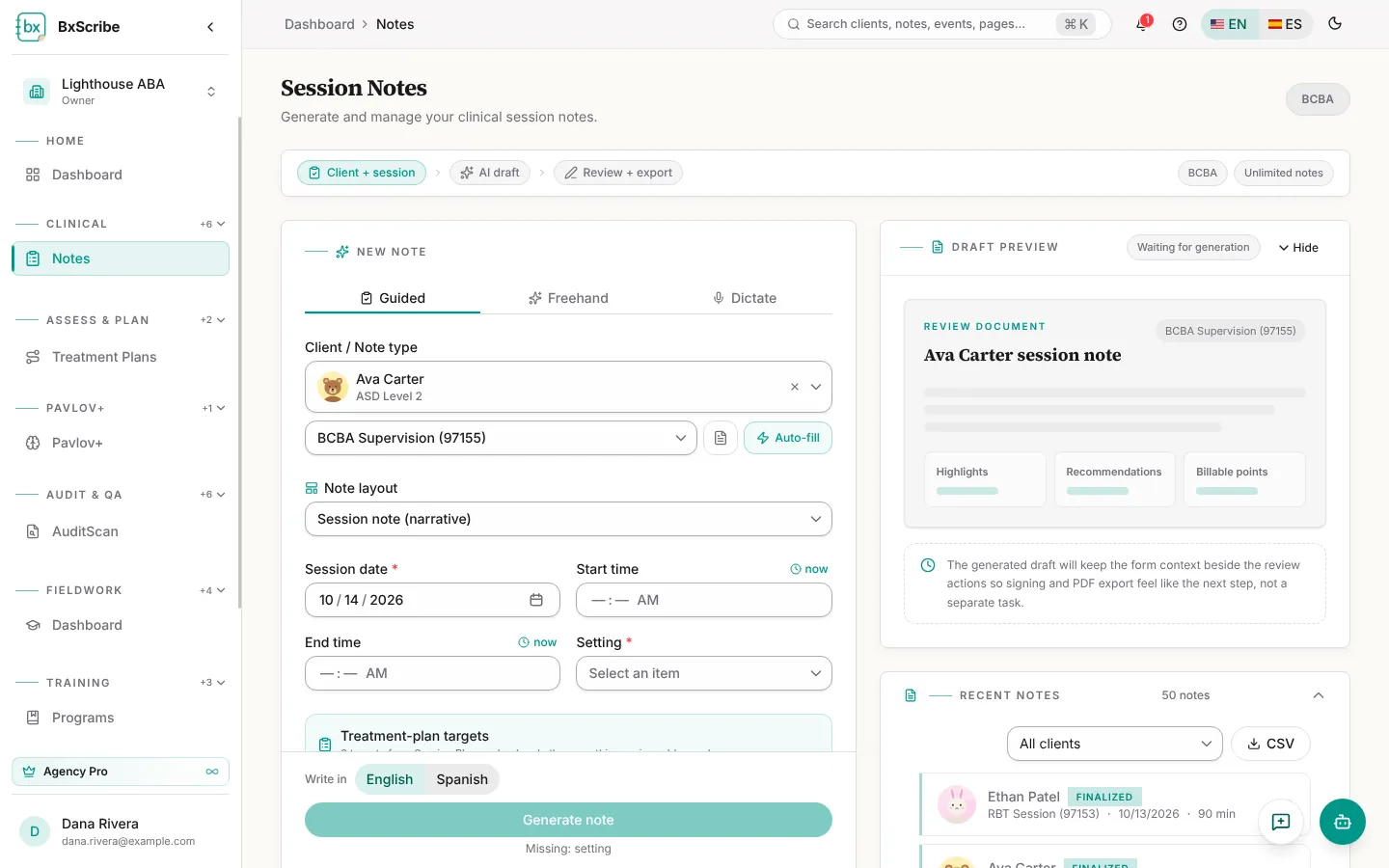
- Pick a capture mode: Guided (structured fields), Freehand (type rough notes) or Dictate (speak your notes; Pro and Agency Pro).
- Choose the client in Select a client.
- In Guided mode, choose the note type. Use the template button next to it to pick a note template, and the lightning button to Auto-fill from this client's last saved note.
- Enter the Session date, Start time, End time and Setting. The session duration appears once both times are set.
Fill in the session details
In Guided mode, open only the sections that apply. Everything you enter is used by the AI, and nothing is invented beyond it.
- Supervising BCBA and Supervision type (RBT notes): leave blank if the session had no supervision.
- Treatment-plan targets (paid plans): tick the behaviors, replacement skills and caregiver goals this session addressed.
- Session Context: who was present, arrival, participation, location and environmental changes.
- Skill Acquisition Programs, ABC Data, and Behaviors & Interventions (with optional frequency, duration and percent).
- Progress & Follow-up: progress, breaks, choices, caregiver communication and next-visit plans.
- Billing & identity (CASP) and structured data blocks (paid plans): place of service, modality, payer, diagnosis, minutes and units. Notes with these filled in are held to the CASP finalize check.
- Relevant information: anything else the AI should include.
Freehand and dictation
In Freehand, type your rough notes in the large box (at least 10 characters); the note type and details are detected for you. In Dictate, select Start dictation, speak, then Stop. The transcript is added to the box so you can edit it before generating.
Live Session: record the session, get a draft
Live Session (Pro and Agency Pro) records the session as it happens and drafts the note when you stop. Start it with Start live session on a scheduled session in the calendar, from Next clinical action on the dashboard, or with Start Live Session on the Notes page once you've picked a client.
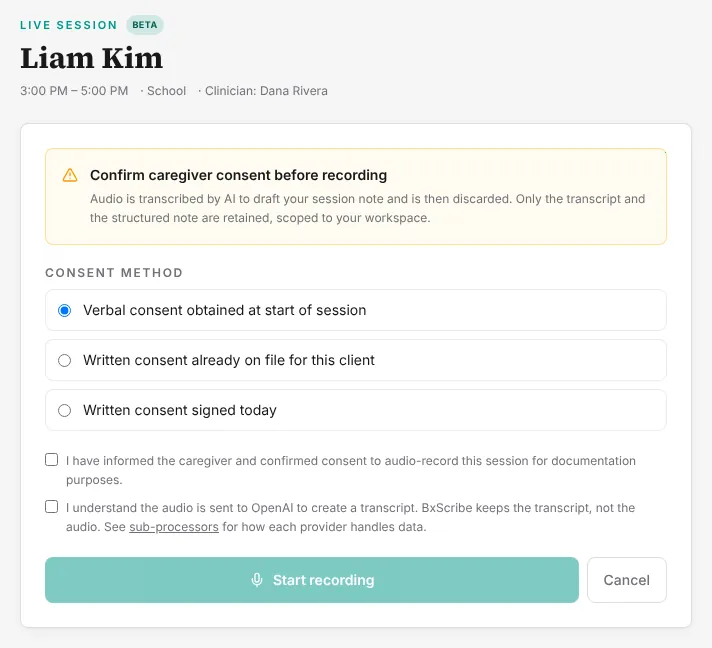
- Choose the consent method: verbal consent at the start of the session, written consent already on file, or written consent signed today (enter the caregiver's name).
- Tick both statements to confirm the caregiver agreed to recording and that the audio goes to OpenAI for transcription, then select Start recording and allow the microphone.
- Pause and Resume as needed. Use Flag a moment to label something important, such as a behavior episode, so the AI gives it attention when drafting.
- Select Stop & draft. The remaining audio uploads, the session is transcribed, and the draft opens in Notes for review and signature.
Generate and save the draft
Use the Write in switch to choose English or Spanish for the note, then select Generate note. The draft streams into the right-hand panel with a title, summary, narrative, highlights, recommendations and billable points.
- Read the draft. A phrase alert lists wording to review, and the similarity readout warns when a note reads too much like an earlier one.
- If needed, select Re-generate. Each generation counts toward your monthly allowance on limited plans.
- Select Save note. The note is saved as a Draft.
- Tick “I attest that this note is accurate”, then choose Sign & finalize (draw or reuse your signature) or Finalize. If your agency requires a co-signature, the note goes to your supervisor instead.
Monthly limits
Free includes 10 notes a month, Individual 30, and Agency Starter 60 per seat. Pro and Agency Pro are unlimited. The plan chip on the Notes page shows how many you have left, and a banner appears when you're close to the limit.