The corrections queue
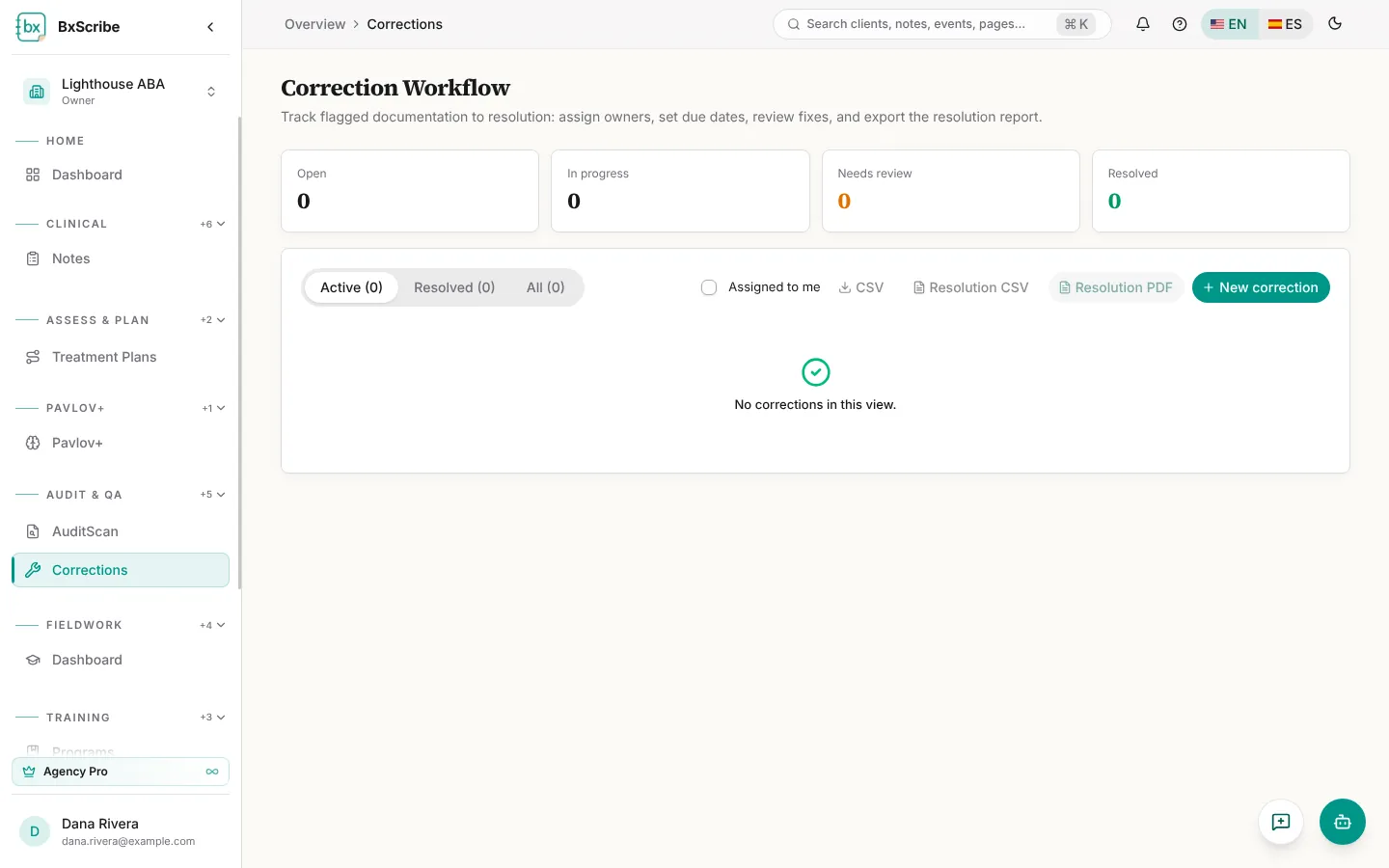
Every flagged finding from a scan, plus any correction you create by hand, lands in Corrections. The tiles count Open (and overdue), In progress, Needs review and Resolved items; tabs show Active, Resolved and All.
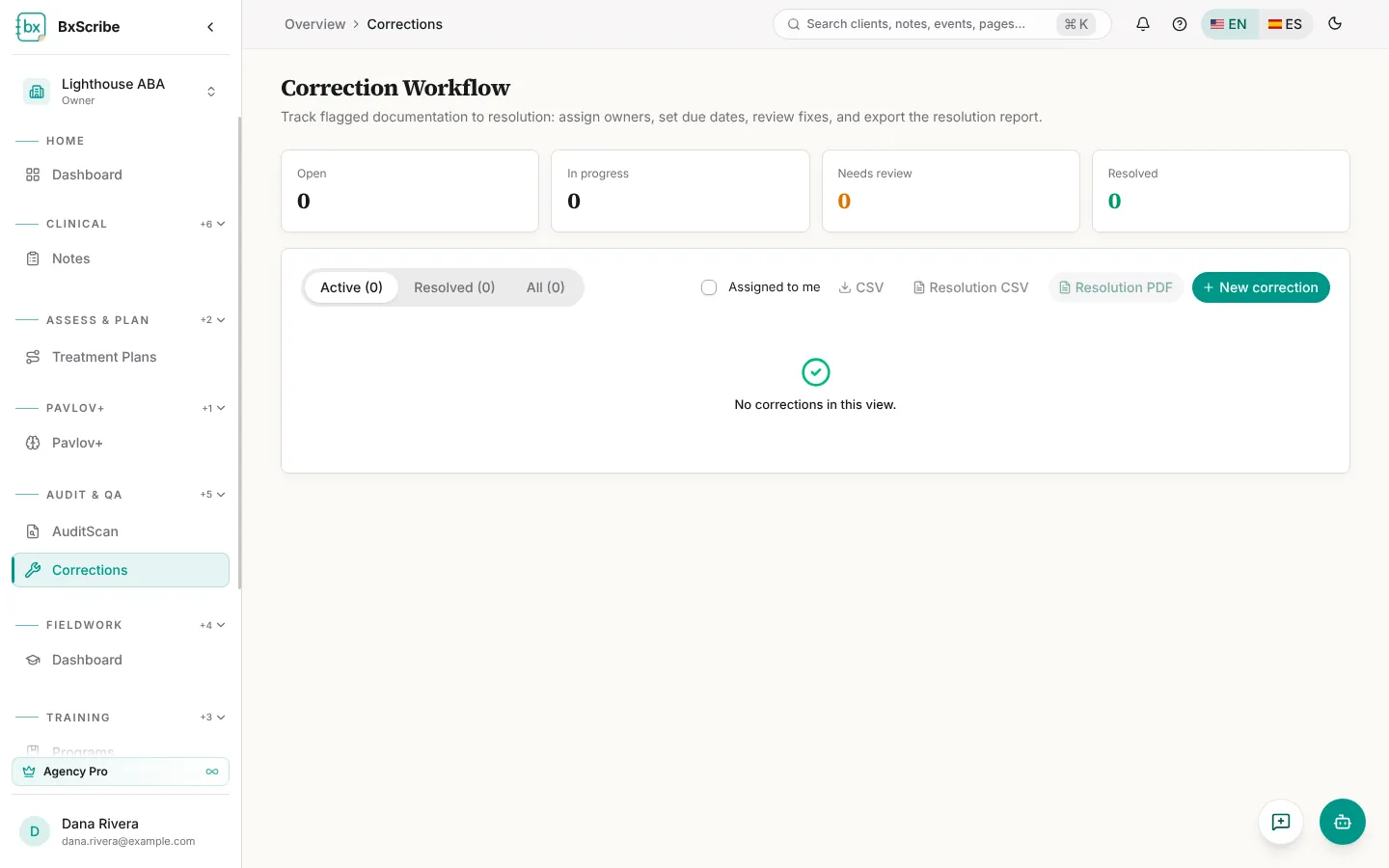
- Create a correction with New correction: title, severity, due date, assignee, element and notes.
- Assign items one by one, or tick several and use the bulk bar to assign, set a due date or change status.
- Resolve an item with a resolution note, then Submit for review or Mark corrected.
- Export the queue as CSV, or the resolution report as CSV or PDF.
Audit history
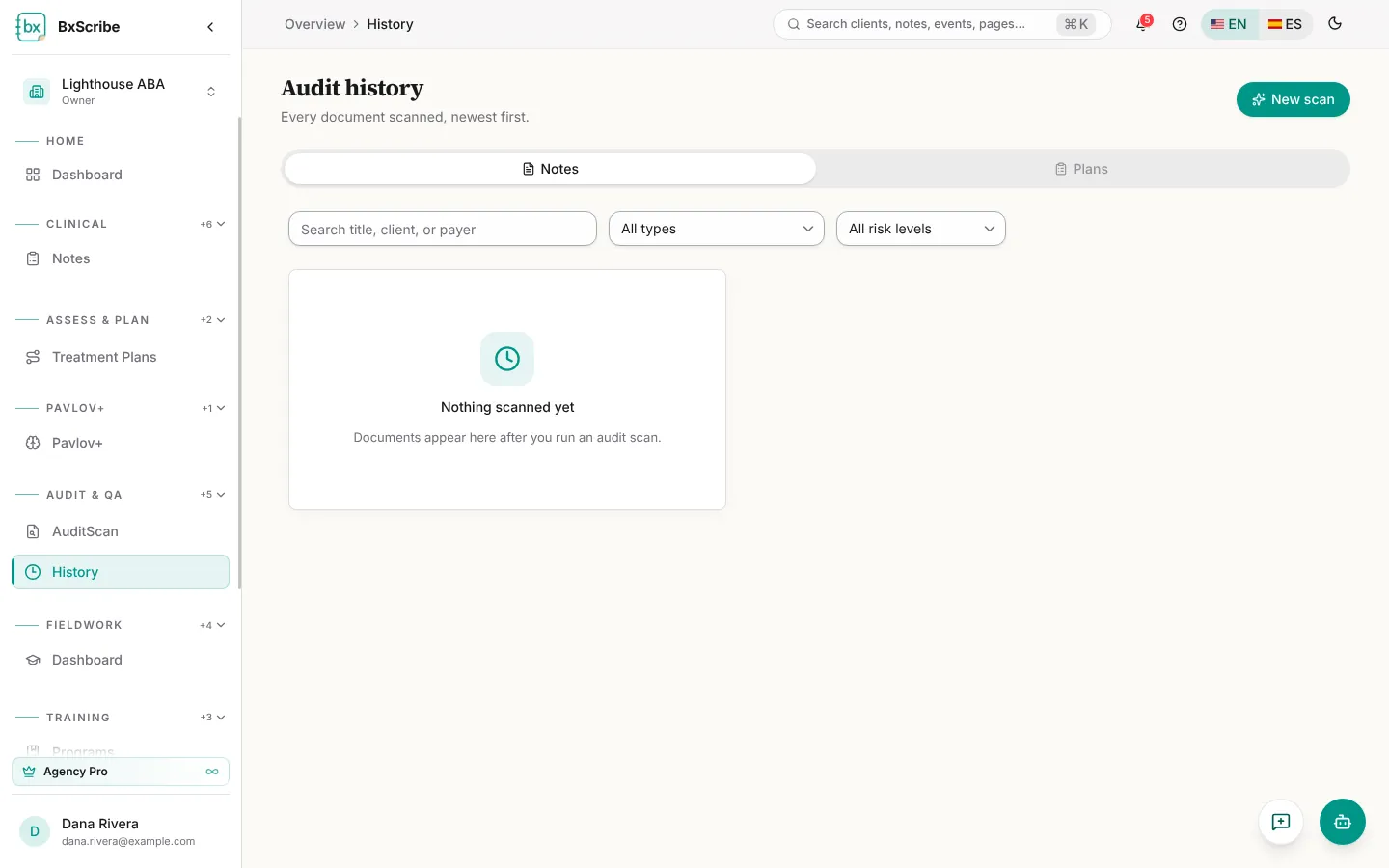
History lists every document scanned, newest first. Search and filter by document type, risk level and client, and see the score trend over time. Open a scan to see its full results again, download it, rename it or mark items fixed. Tick up to three scans to compare their scores, risk and missing elements side by side.
The Plans tab lists treatment plans that have been through a QA scan, with each plan's scan history.