Calendar views
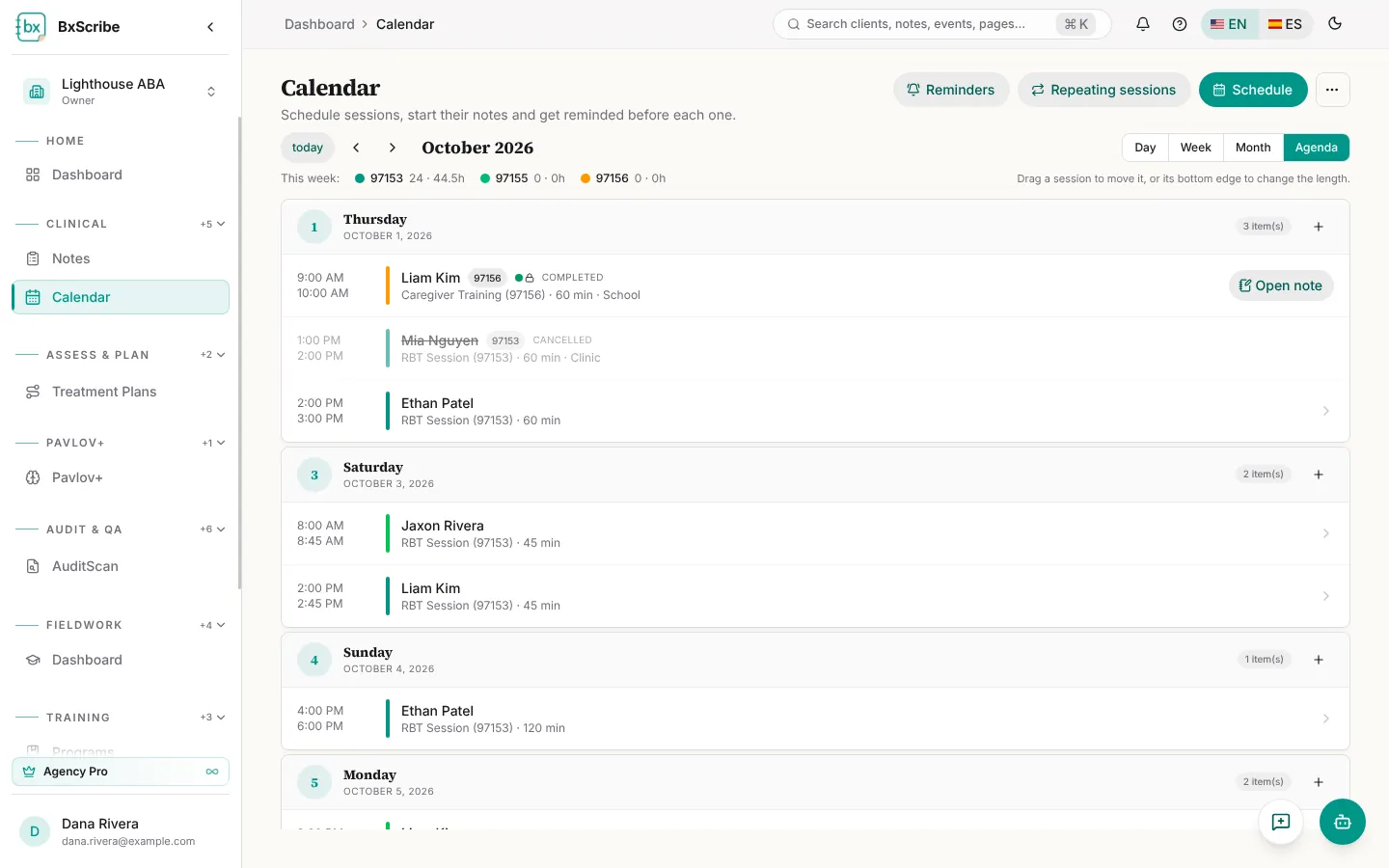
Open Calendar from the Clinical group. Switch between Day, Week, Month and Agenda, and use today and the arrows to move around. The strip above the grid shows this week's sessions and hours by service code.
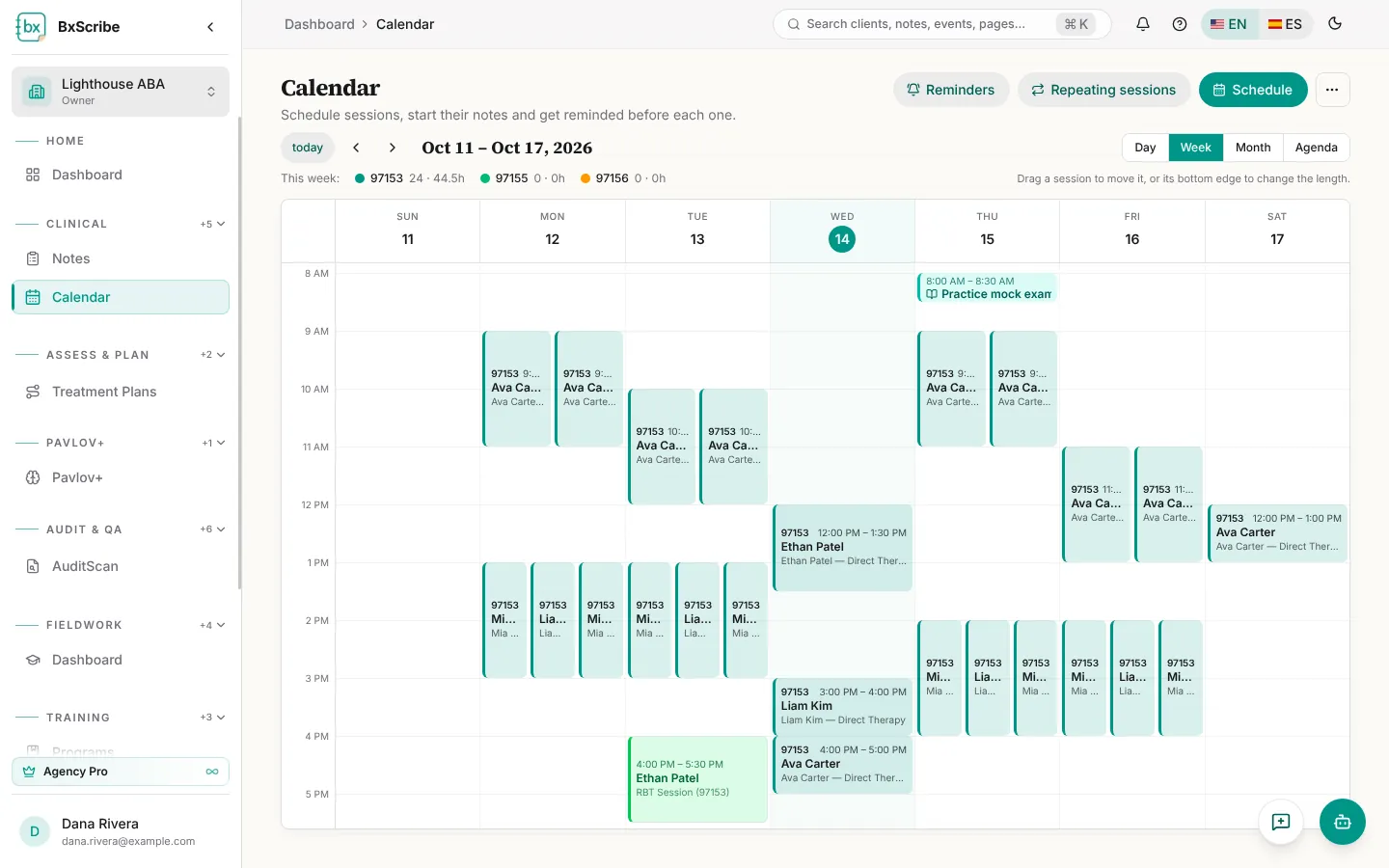
- Drag a session to move it, or drag its bottom edge to change its length. A draft note moves with its session; finalized notes don't.
- Agenda lists upcoming sessions day by day with Open note on each.
Schedule a session
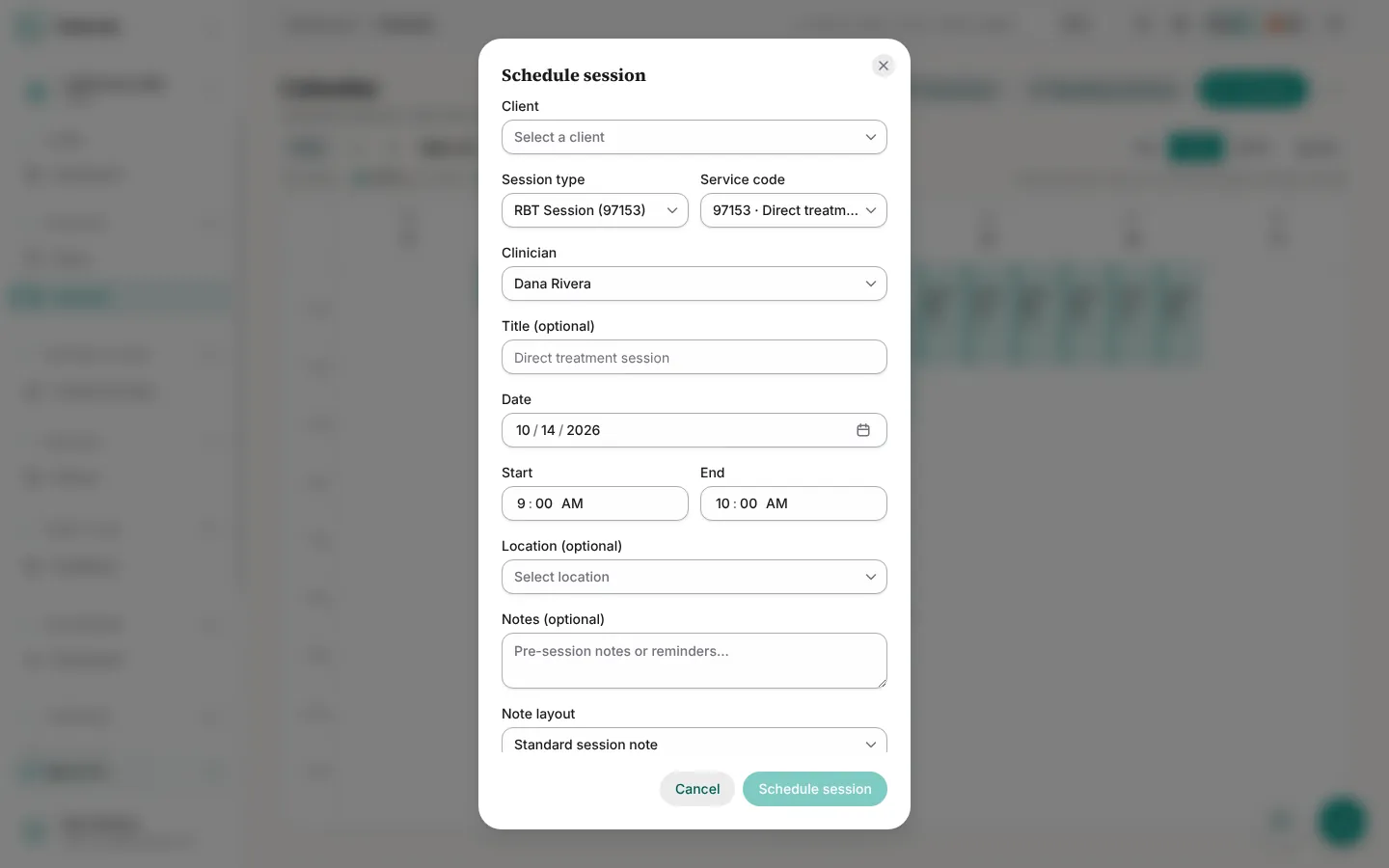
- Select Schedule, or drag across empty time on the grid.
- Choose the client, session type, service code (97153, 97155 or 97156) and, in agencies, the clinician.
- Set the date, start and end time, and optionally a title, location and notes.
- Switch on Start note draft to create the note at the same time, then select Schedule session.
Work from a session
Select a session to open its note, or to see Open note, Start note draft, Write with AI and Edit. Editing a repeating session asks whether to change this session, this and following sessions, or the whole series.
Repeating sessions
Repeating sessions (Individual and up) creates a series in one go: pick the weekdays, start date, start time, duration and number of weeks, and optionally a draft note for each session. Preview shows every slot and skips conflicts where the clinician or client is already booked. Then select Create.
Reminders
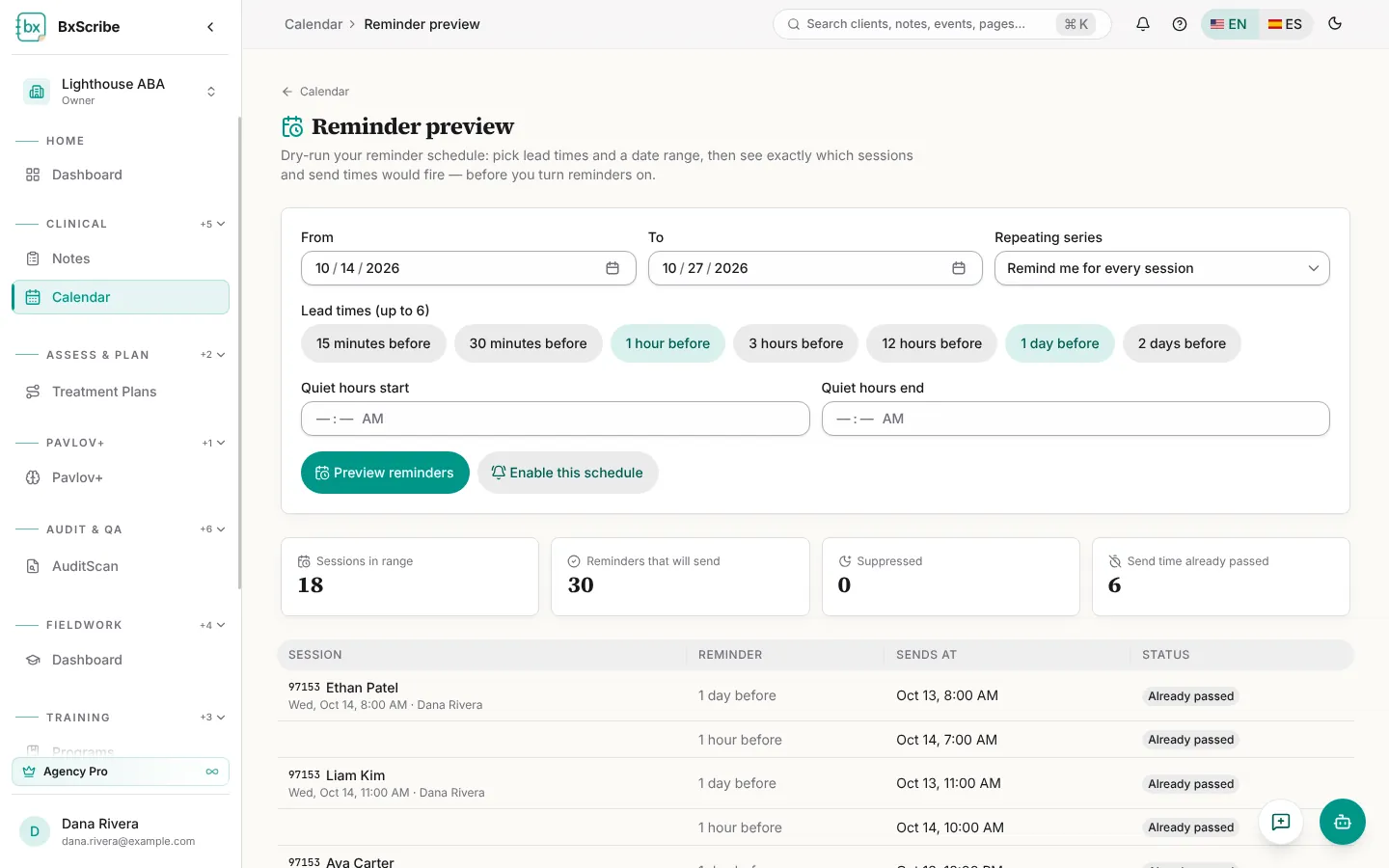
Reminders sends session reminders by email or browser push (push needs Individual or above). Choose up to six lead times, quiet hours, and whether a repeating series reminds you for every session or once a day. Reminders never include client names.
Reminder preview is a dry run: pick lead times and a date range to see exactly which reminders would send and which would be suppressed, then Enable this schedule.