The plans list
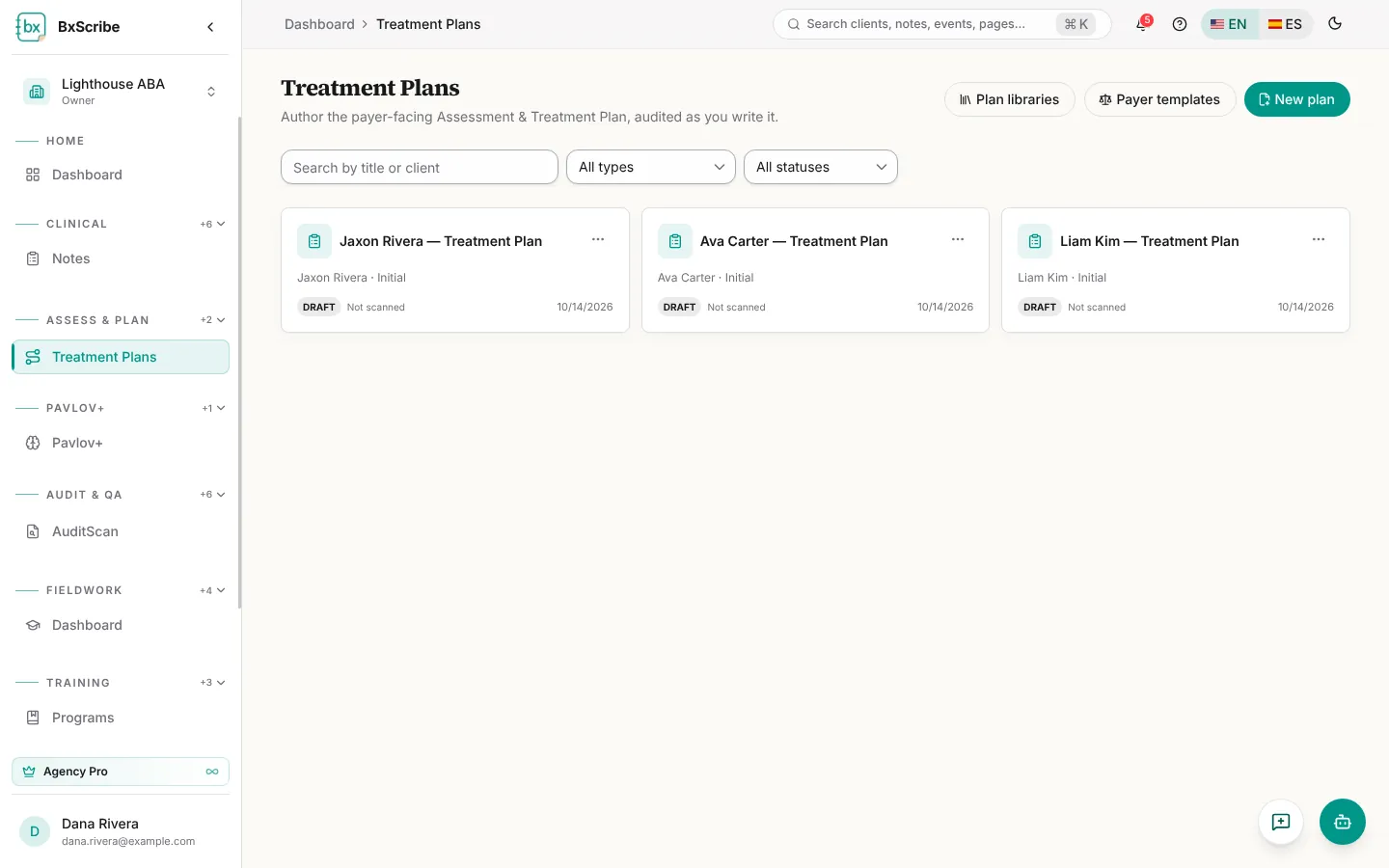
Open Treatment Plans from the Assess & Plan group. Each card shows the client, plan type, Draft or Final status and the last audit score. Search by title or client, and filter by type and status. The ⋯ menu on a card offers Summary, Rename, Duplicate, Start reassessment and Delete.
Create a plan
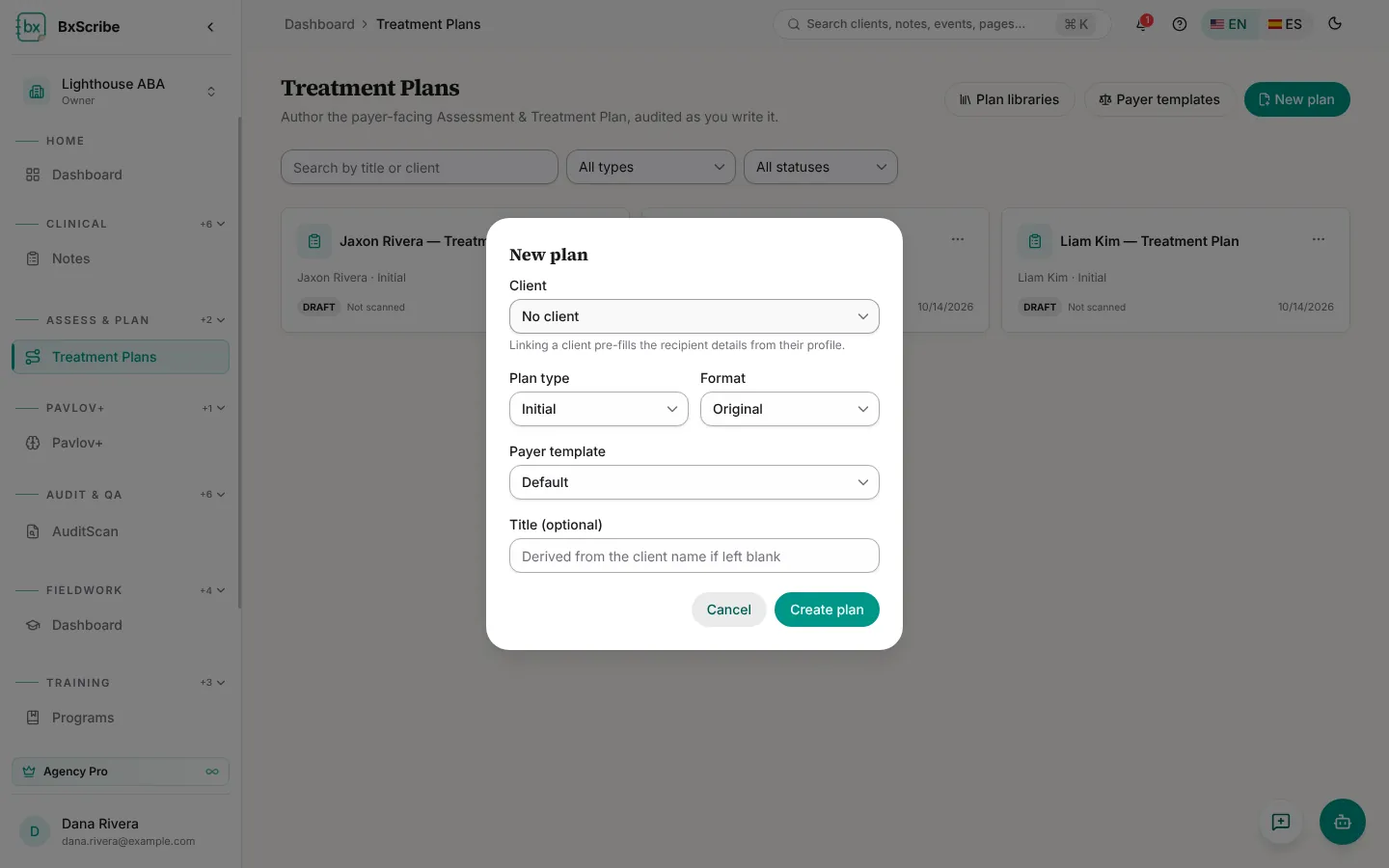
- Select New plan.
- Choose the client (this pre-fills recipient details), the plan type (Initial or Reassessment), the format and the payer template.
- Optionally enter a title, then select Create plan. The builder opens.
Find your way around the builder
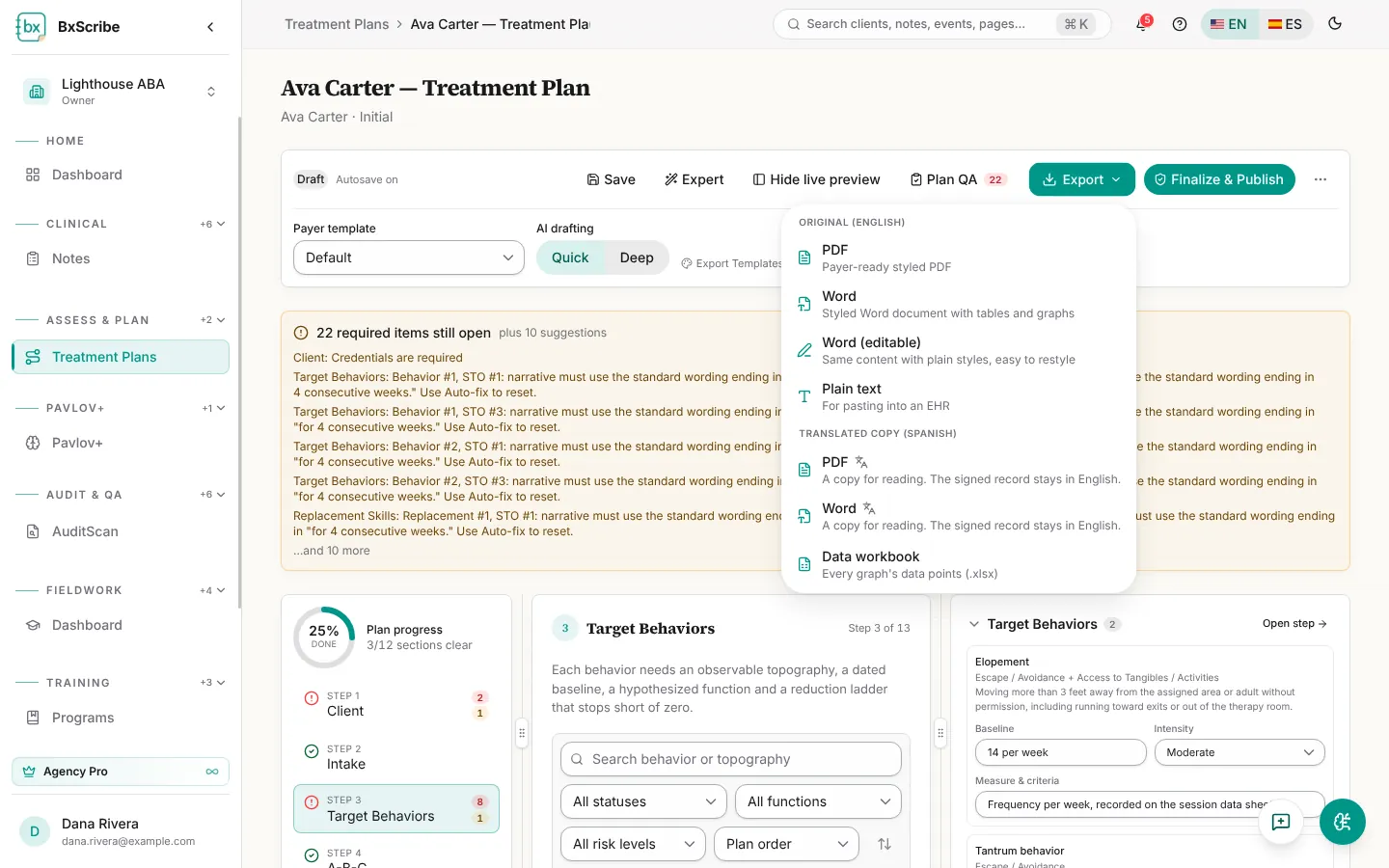
The step list on the left shows errors and warnings for each of the 13 steps. The centre panel is the step you're editing, with Previous and Next. In Expert mode, a live preview on the right matches the PDF and Word export.
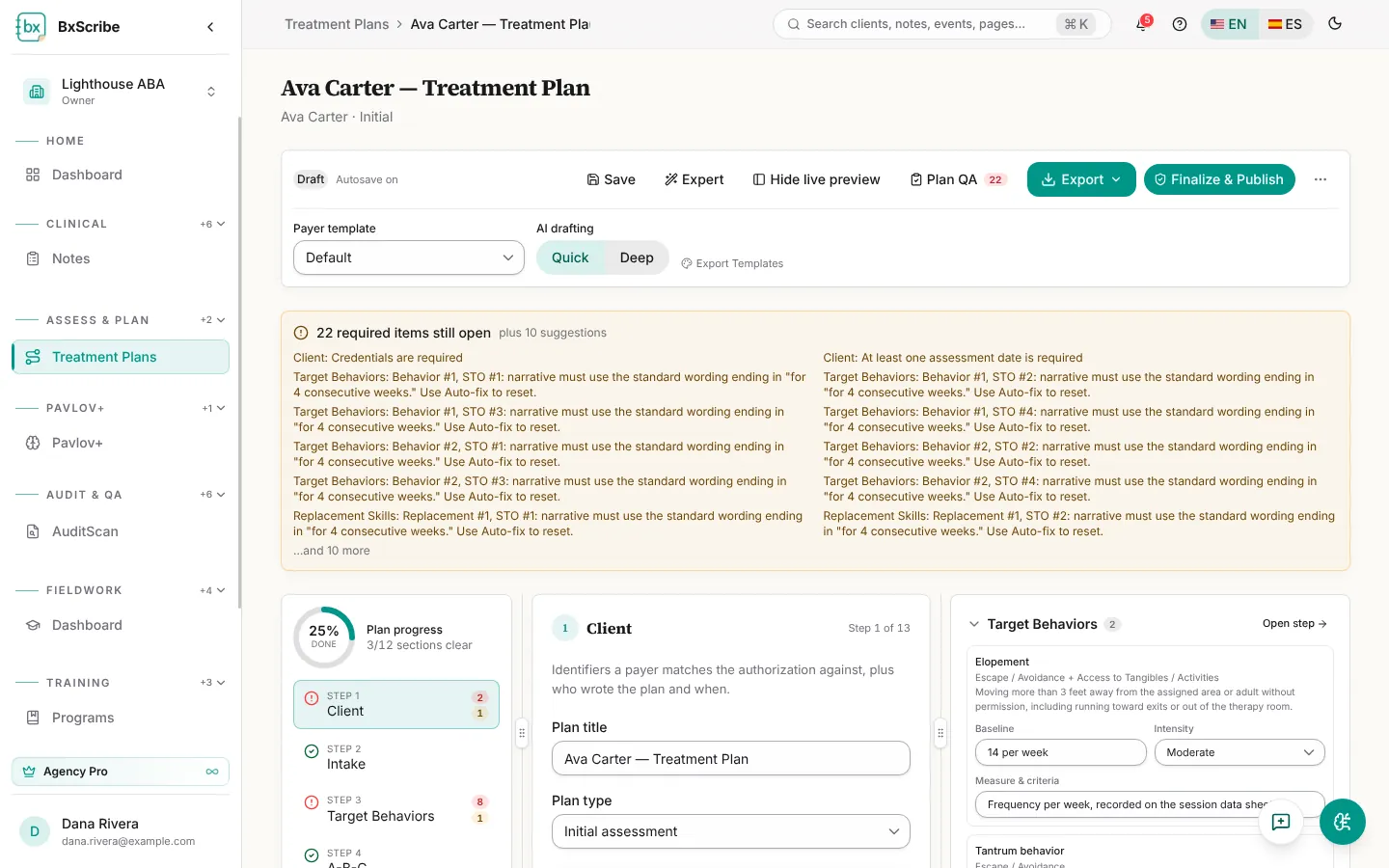
- Save keeps a version (Ctrl+S). The plan also autosaves about 1.5 seconds after you stop typing, with an Undo toast.
- Wizard mode guides a new plan one step at a time; Expert mode shows everything at once.
- Payer template sets the section headings and required sections for that payer.
- AI drafting sets every Generate button to Quick or Deep.
- Drag the divider between columns to resize them; double-click it to reset.
The 13 steps
- Client: recipient details, diagnosis (with ICD-10 lookup), treatment settings, assessment dates and the agency header.
- Intake: describe the client or drop in documents, then Analyze and propose plan updates and apply the ones you want.
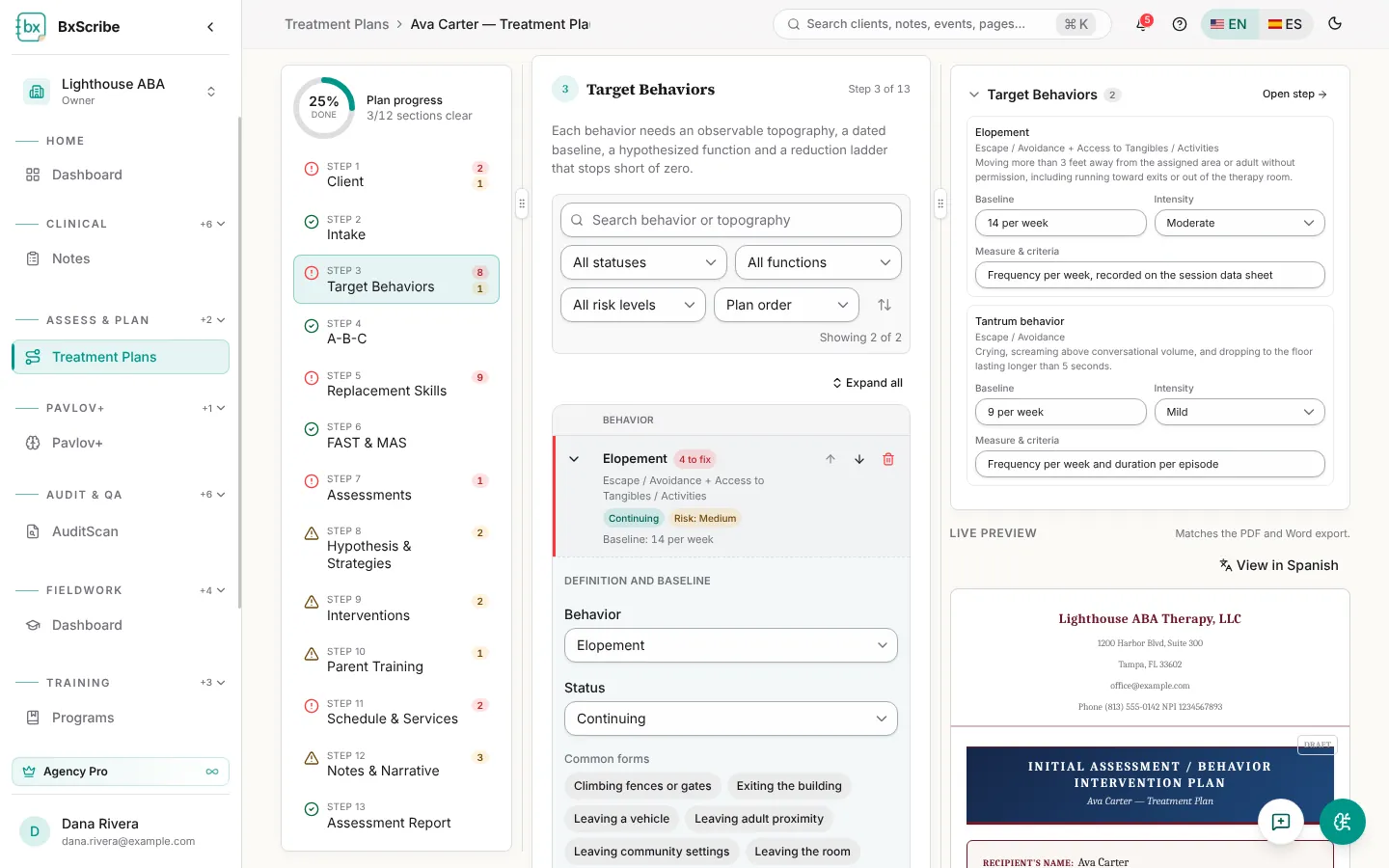
- Target Behaviors: behaviors, definitions, baselines, measures and STO/LTO ladders.
- A-B-C: antecedent, behavior and consequence rows with hypothesized functions.
- Replacement Skills: programs, baselines, barriers and teaching procedures.
- FAST & MAS: a screening for each behavior, or import a saved one.
- Assessments: preference results, linked assessments, tools used and score images.
- Hypothesis & Strategies: preventive, replacement and management strategies per function.
- Interventions: pick from the intervention library and generate how each will be used.
- Parent Training: caregiver goals with STOs and graphs.
- Schedule & Services: weekly schedule, CPT services, units and rationales.
- Notes & Narrative: narrative sections, medical necessity, medications and consent.
- Assessment Report: extra fields for the comprehensive report layout.
Target behaviors and objectives
Select Add behavior and pick a behavior from the library; its definition, onset, offset, functions, measure and long-term objective fill in automatically, and anything you've edited is kept. Enter baseline data, intensity and the hypothesized functions.
STO targets can be written as a count per week or a percent reduction (Auto picks count when the baseline is a number). Choose the number of ladder steps and select Regenerate STOs to rebuild them, then tick each STO as it's achieved.
Check quality and finalize
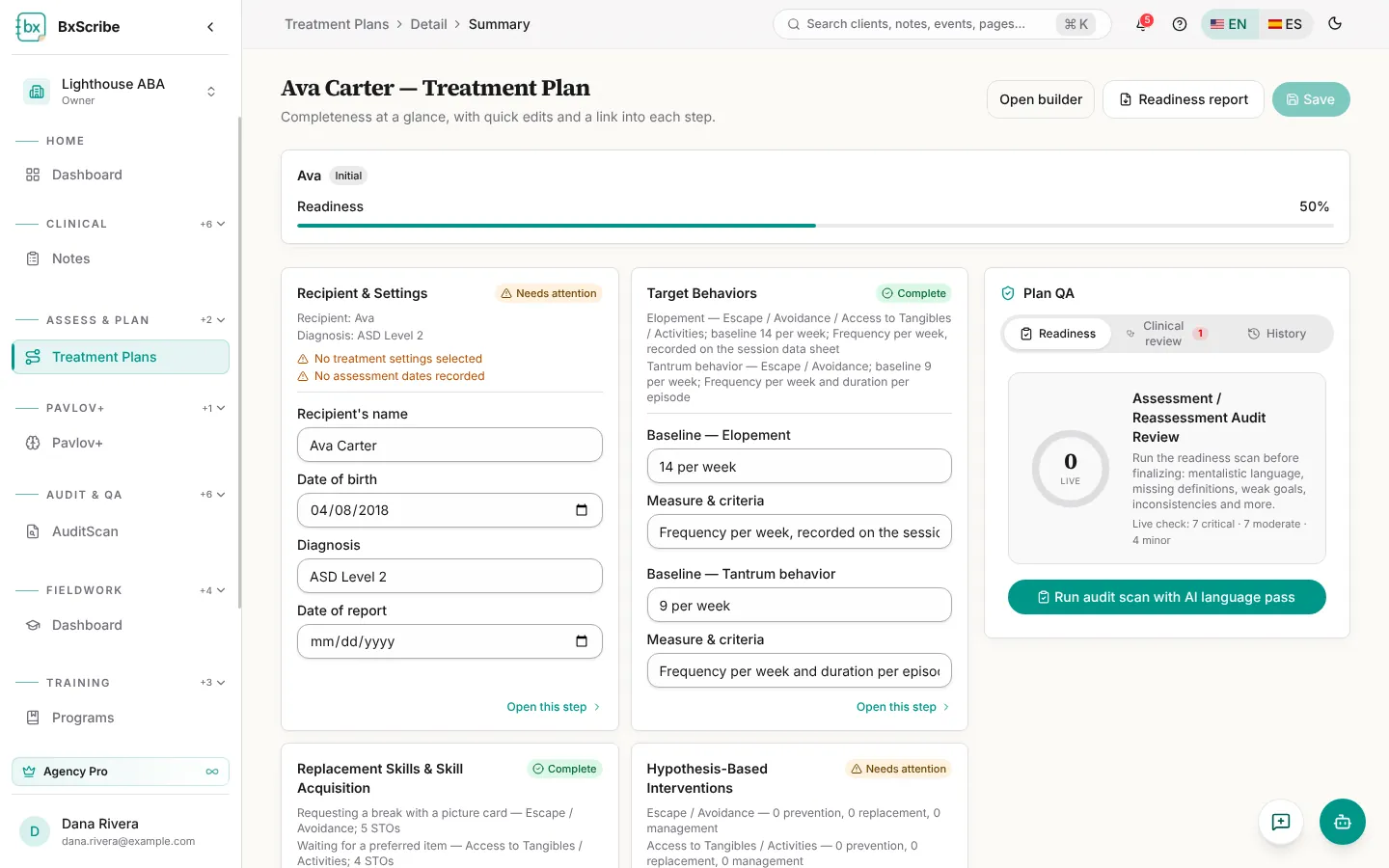
The banner at the top lists required items still open; select one to jump to it. Plan QA opens a drawer with Readiness (run the audit scan and fix findings, one by one or with AI), Clinical review and History, plus a downloadable readiness report.
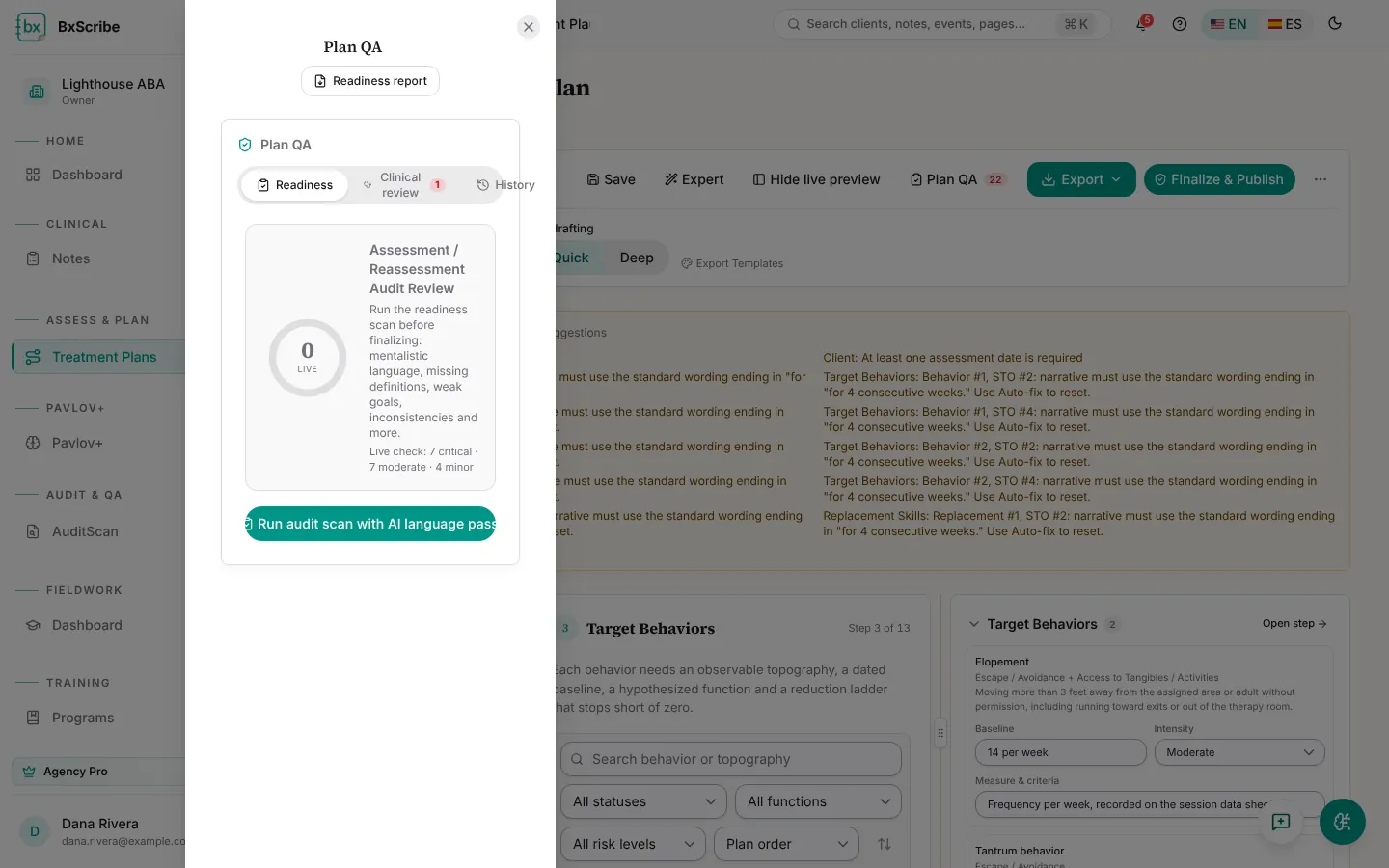
- Run the audit scan after your last edit.
- Select Finalize & Publish, review any blocking issues, and confirm Approved by and an optional approval note.
- Select Finalize & lock. The plan becomes read-only and a pinned version is saved.
Export the plan
Export offers a payer-ready PDF, a styled Word document, an editable Word file, plain text for pasting into an EHR, a translated reading copy and a data workbook of every graph. Drafts carry a DRAFT watermark, and the Medical Necessity Justification must be complete before you can export.
Export options control the document language, report format, first page, which sections are included and on new pages, the document theme and the page size.
Plan summary and older drafts
Summary shows how complete each part of the plan is, with quick edits for key fields and links to the right step. Plans written with the earlier drafter are listed on the Treatment Plans (drafts) page with Import into Plan Builder.