The sidebar
The sidebar lists every module your plan and role include, grouped in this order: Home, Clinical, Assess & Plan, Pavlov+, Audit & QA, Fieldwork, Training, Study and Agency. Groups you don't have access to are hidden.
Groups start collapsed and show only their main item. Select a group heading (it shows how many items are hidden, for example +6) to expand it. BxScribe remembers which groups you opened on that browser.

- Collapse the sidebar to an icon rail with the arrow next to the logo; hover an icon to see its name.
- Some items show a lock and a badge such as Pro or Agency Pro. These are features your current plan doesn't include; selecting one opens Billing.
- The plan widget near the bottom shows your plan and, on limited plans, how many notes, revisions and clients you have left.
Switching workspaces
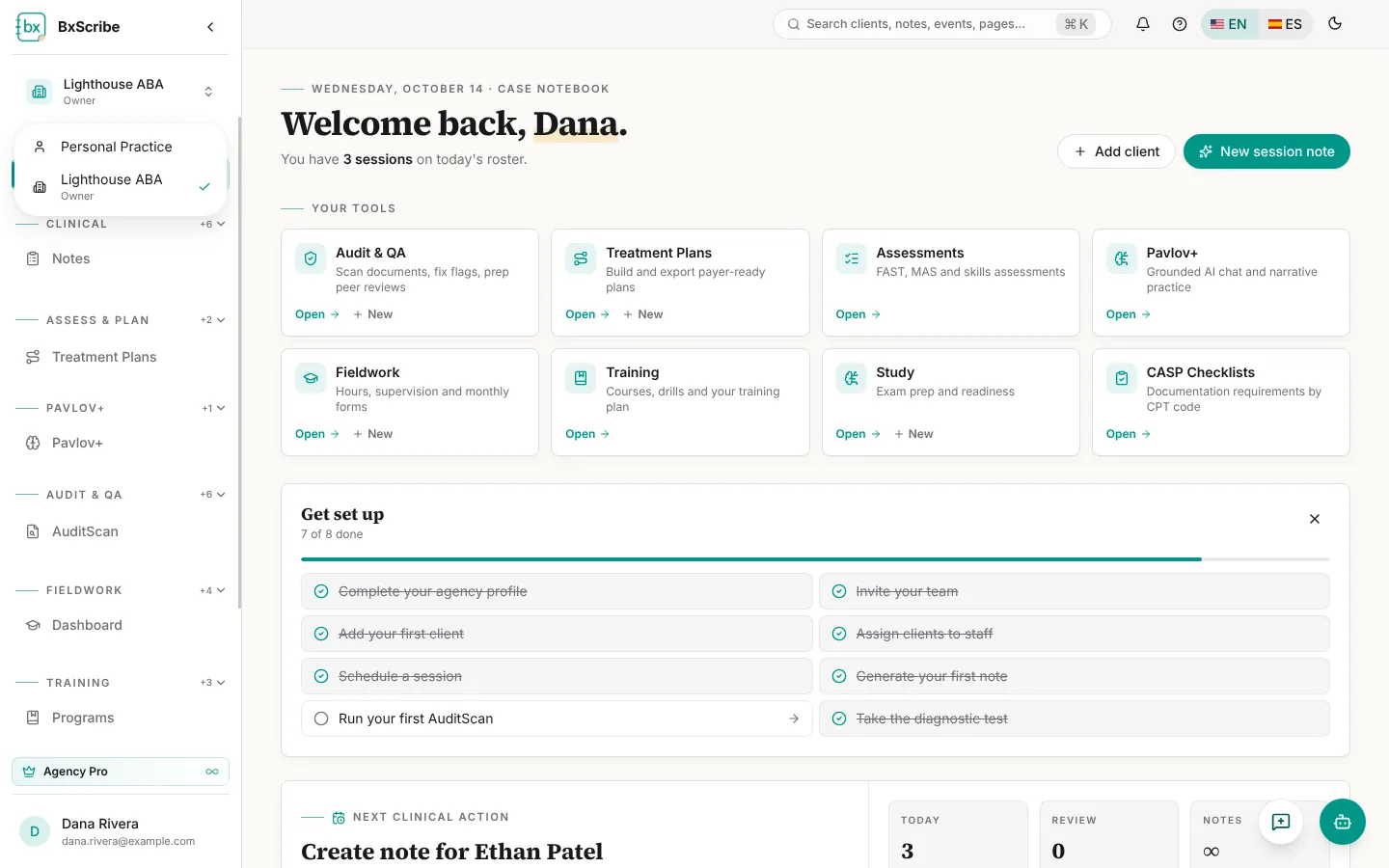
The card at the top of the sidebar shows the workspace you're working in and your role there. Select it to switch between your personal practice and any agency you belong to.
Search and quick actions
Press Ctrl+K (⌘K on Mac) or / anywhere, or click the search box at the top of the page. Type a client name, note, calendar event or page name. The palette also offers quick actions such as New session note, New AuditScan, New treatment plan, Log fieldwork hours and Start a mock exam.
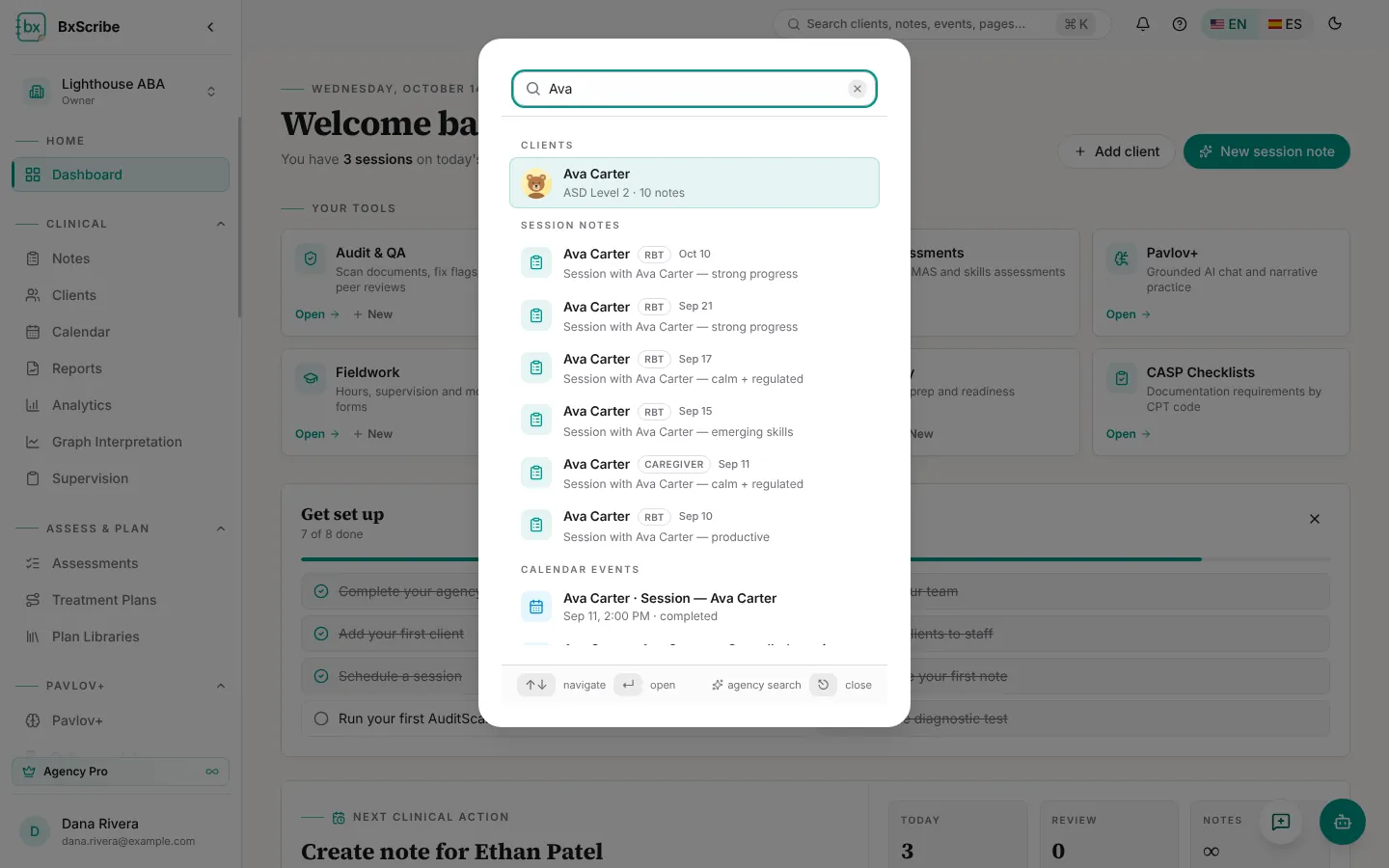
- Use the arrow keys to move, Enter to open and Esc to close.
- Search only covers the workspace you're in. The footer tells you whether it's an agency or personal search.
Notifications
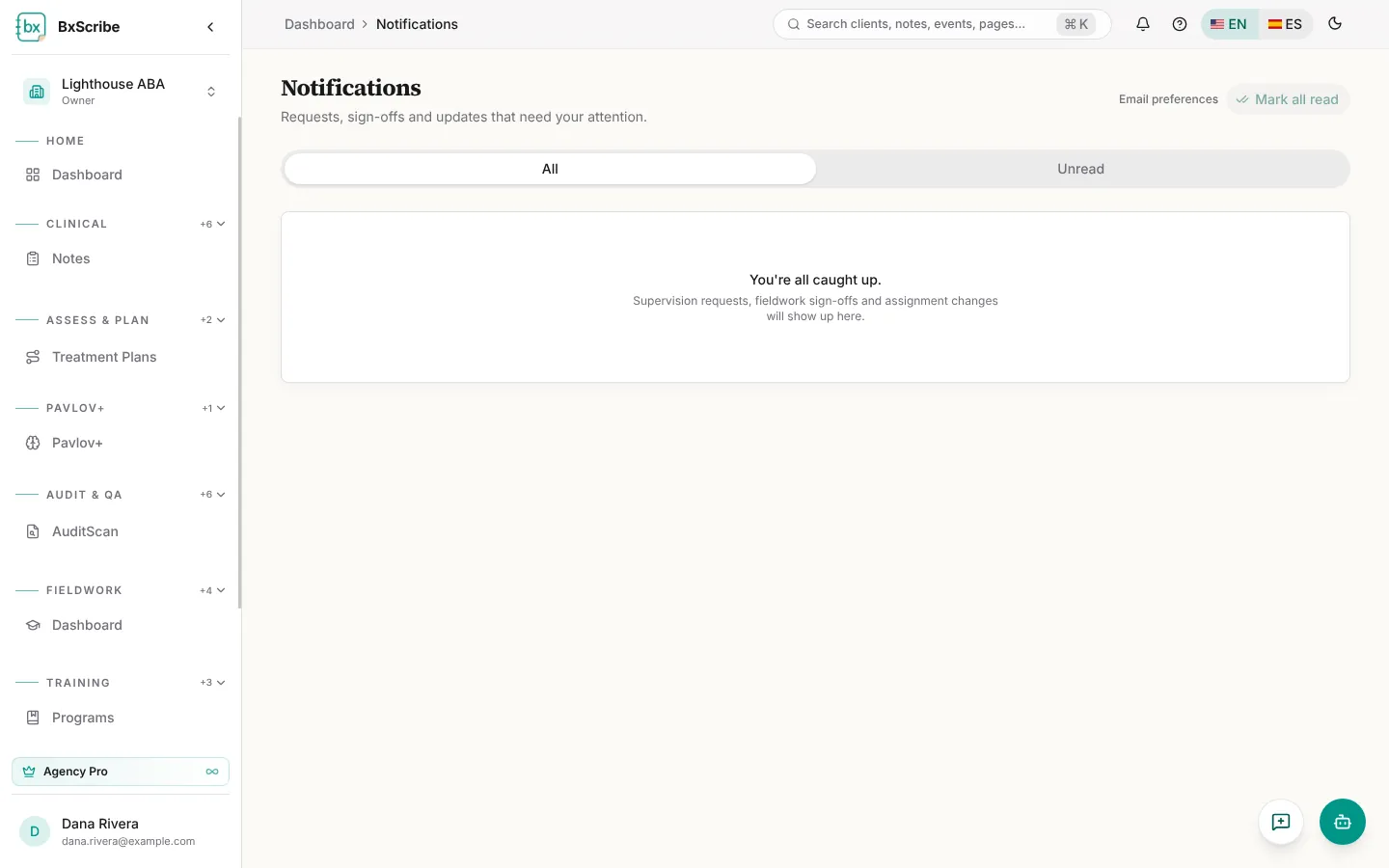
The bell in the top bar shows unread notifications such as supervision requests, notes returned for correction and form signatures. Open it for a quick preview, or choose View all for the full list with All and Unread tabs, Mark read and Delete.
The help drawer
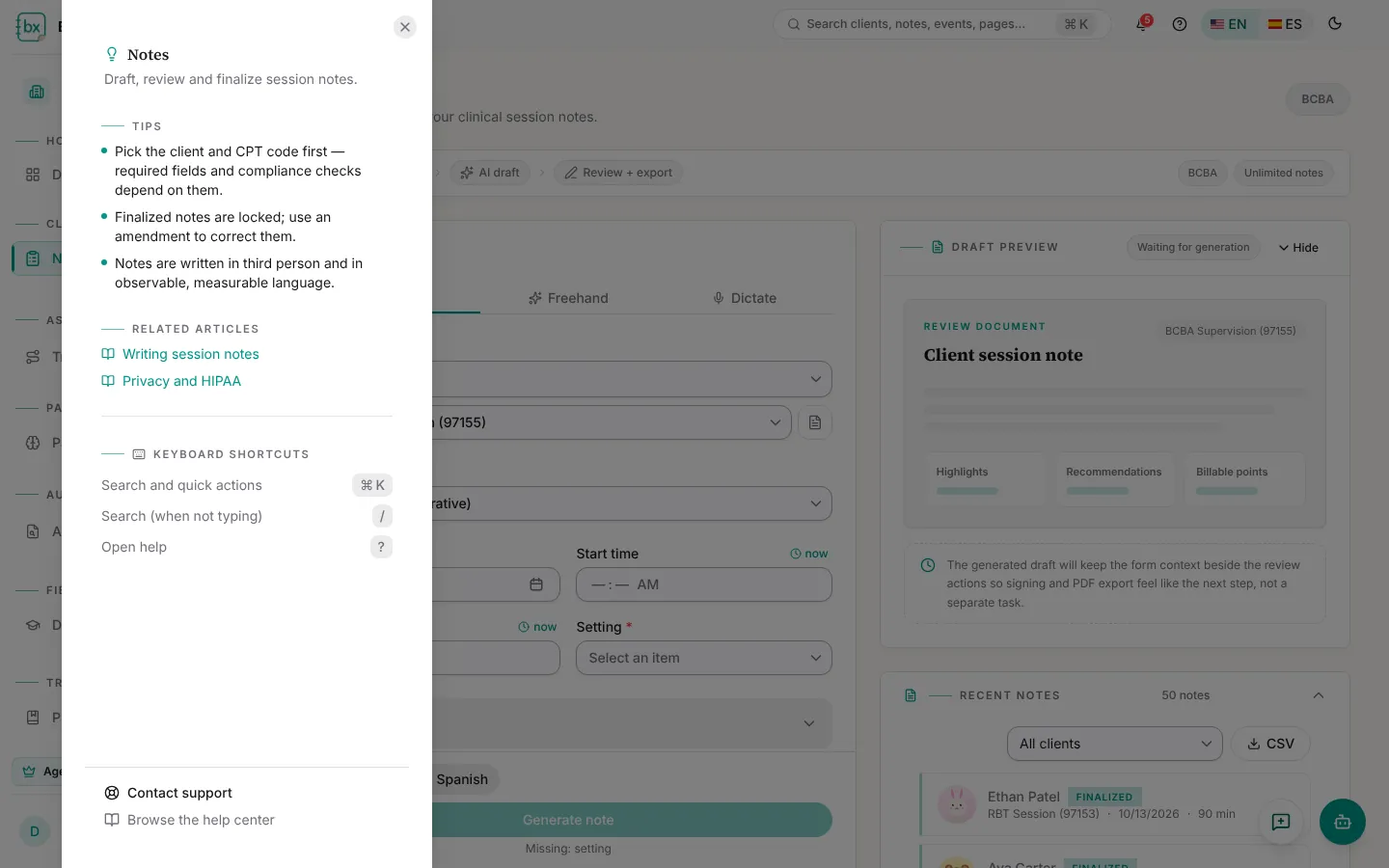
Select the ? button in the top bar, or press ? on your keyboard, to open help for the page you're on. It lists tips, related help articles and keyboard shortcuts, plus links to Contact support and the Help Center.
Your account menu
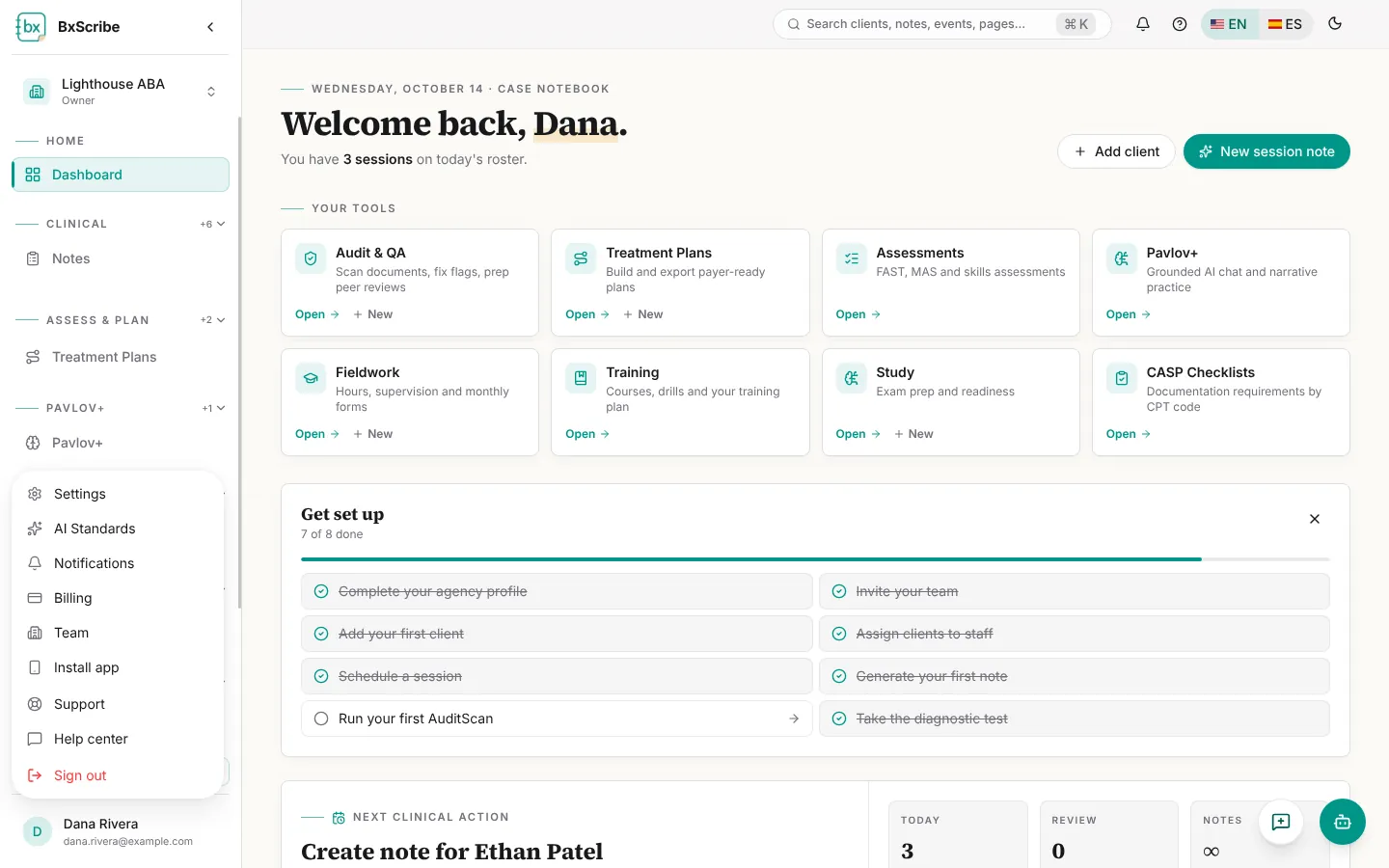
Select your name at the bottom of the sidebar for Settings, AI Standards, Notifications, Billing, Team, Install app, Support, the Help Center and Sign out.
Language, dark mode and phones
Use the EN | ES switch in the top bar to change the interface language, and the moon icon to switch between light and dark mode. Both are saved to your account. The language of the clinical documents you write is set separately (see Write a session note).
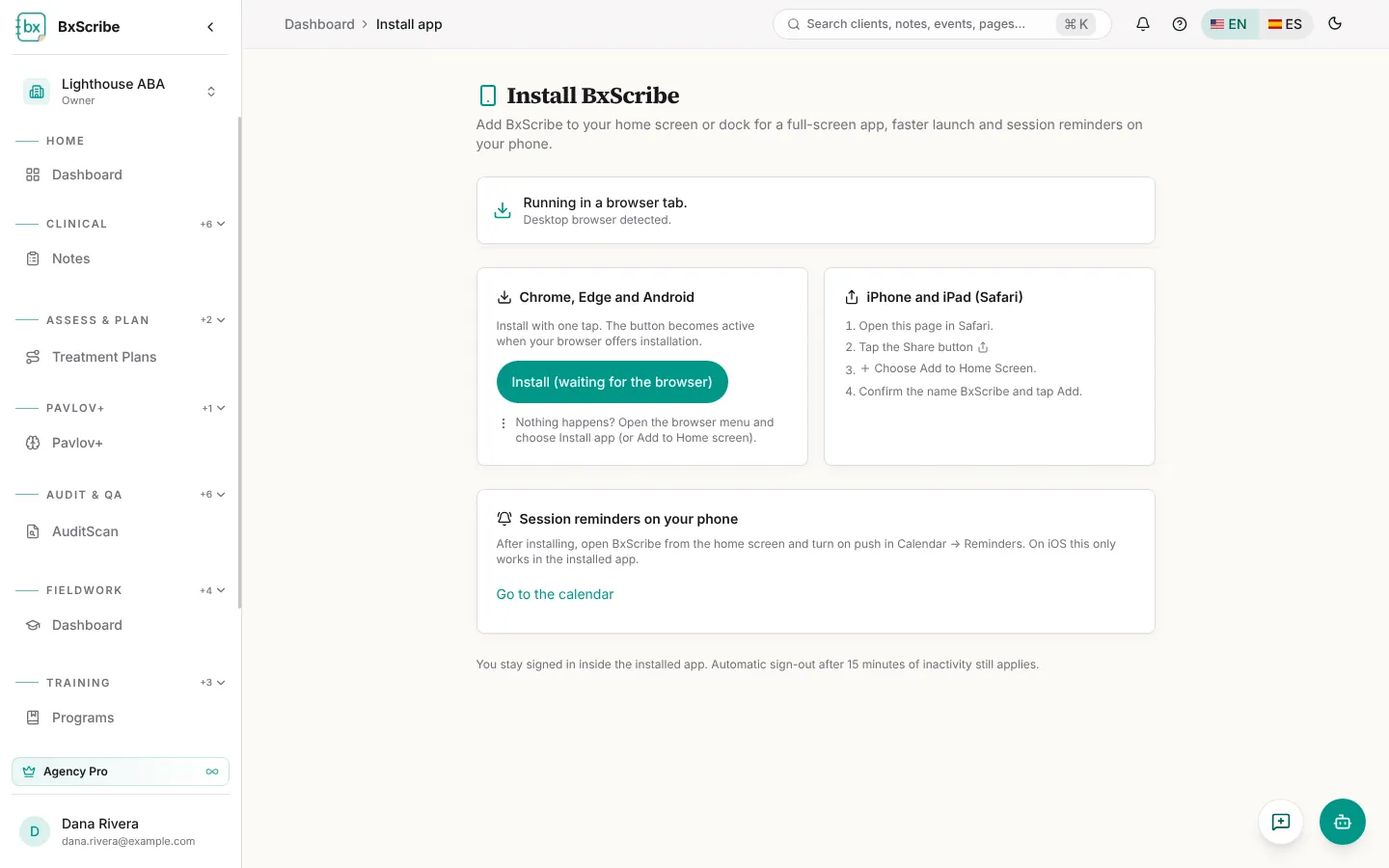
On a phone, a bottom bar gives you four main destinations plus More. To install BxScribe like an app, open Install app from the account menu and follow the steps for your device.