The top of the dashboard
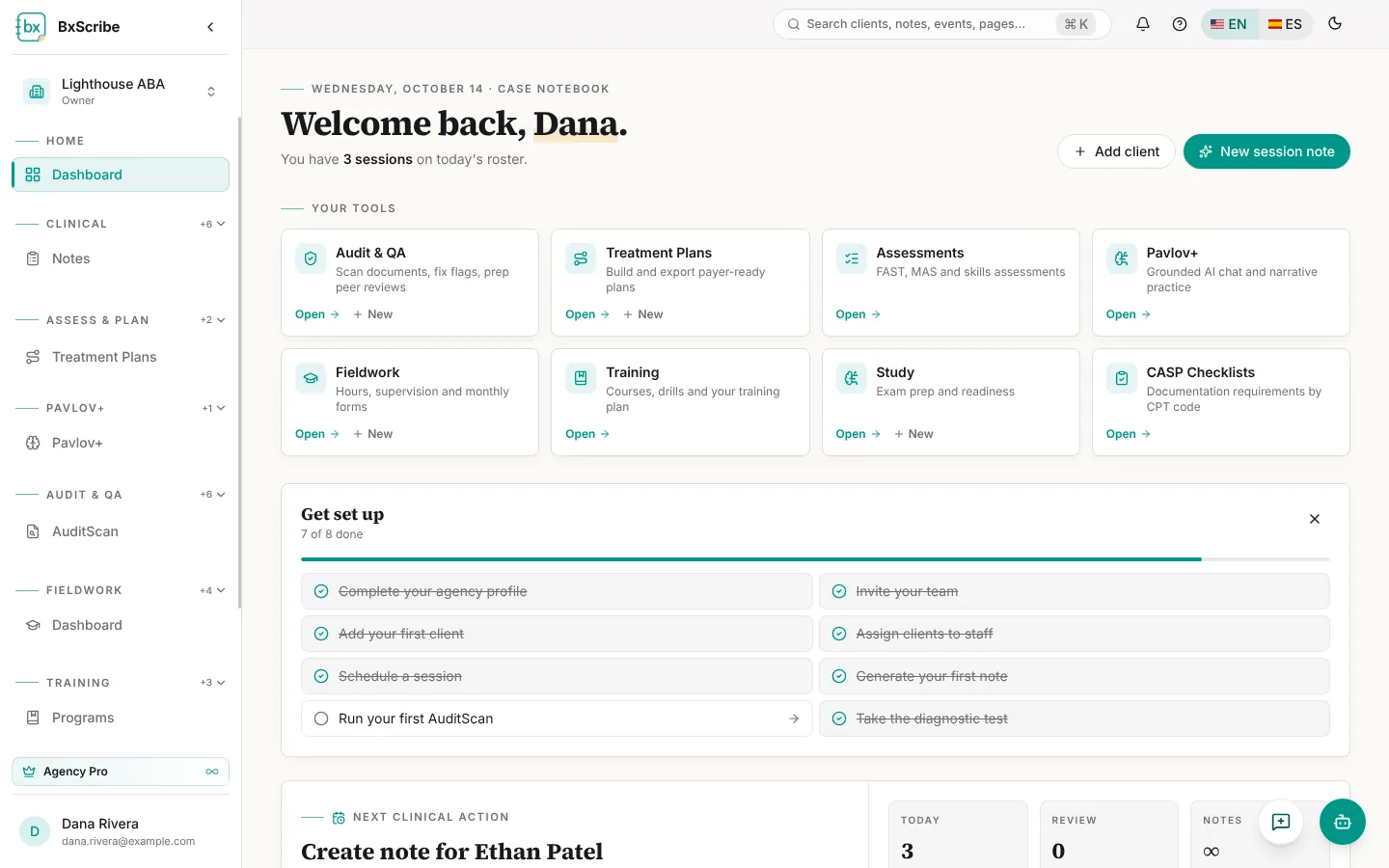
The dashboard greets you with today's date and a one-line summary of your day, such as how many sessions are on today's roster and how many supervision requests need your review. Two buttons start the most common jobs: Add client and New session note.
Your tools
One card appears for each module you can use: Audit & QA, Treatment Plans, Assessments, Pavlov+, Fieldwork, Training, Study and CASP Checklists. Each card has Open, and most have + New to start something straight away (for example a new scan, plan or mock exam).
Get set up
The checklist shows the steps that matter for your role, with a progress bar. Each finished step is crossed out. Select the X to hide the checklist for good; it also disappears once everything is done.
- Agency owners: complete your agency profile, invite your team, assign clients to staff and run your first AuditScan.
- Clinicians: add your first client, schedule a session and generate your first note.
- BCaBAs and BCBAs with the Plan Builder: create a treatment plan.
- Study users: take the diagnostic test.
Next clinical action and your numbers
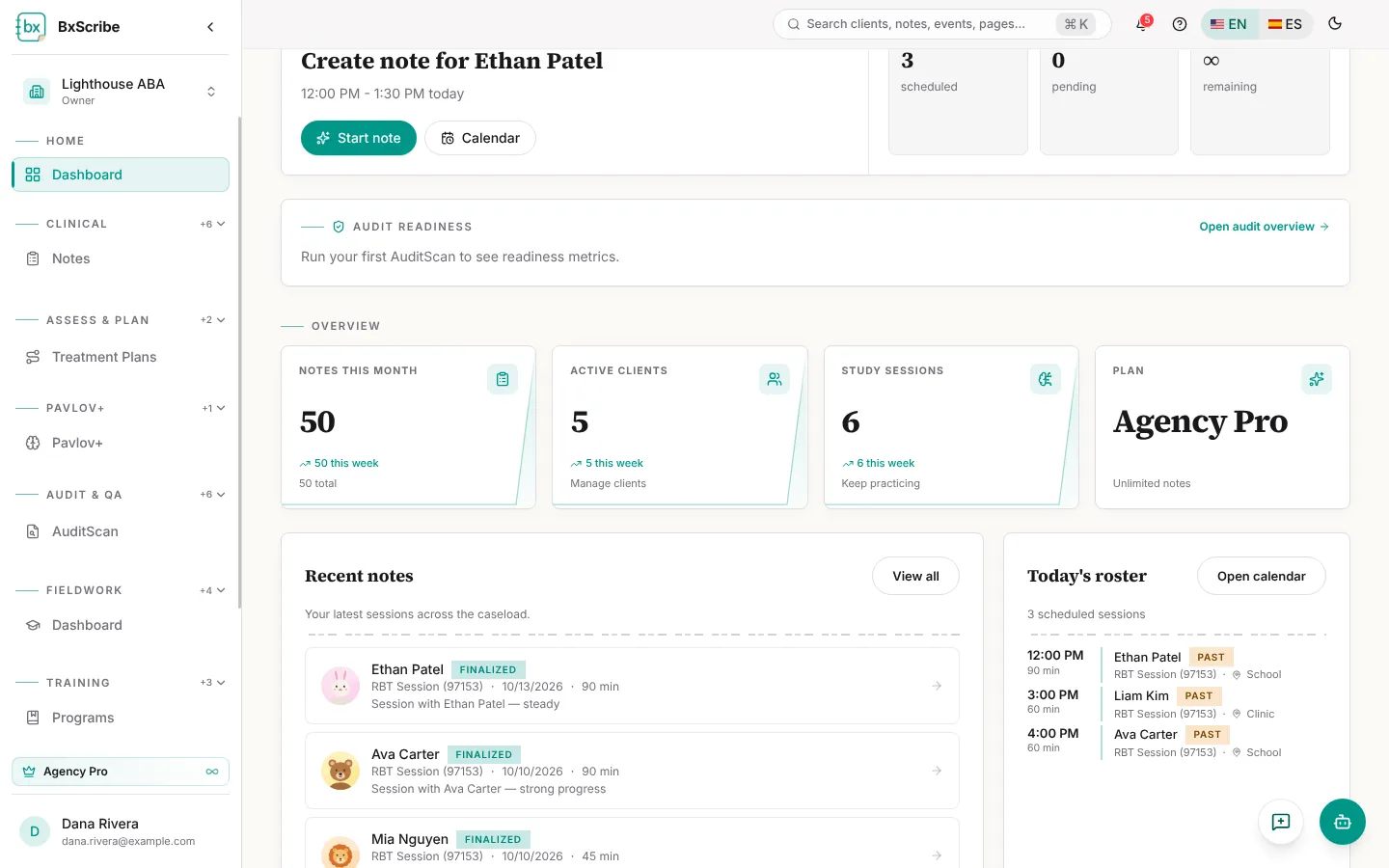
Next clinical action suggests the note to write next, usually for a session on today's roster. Start note opens the Notes page with the client, date and times already filled in. Pro plans with Live Session can start a recording from here too.
Small tiles show today's sessions, pending supervision requests and how many notes you have left this month. Audit & QA users also see an Audit readiness tile with the average score, high-risk documents and open flags.
The Overview cards track notes this month, active clients, study sessions and your plan usage, each with a 14-day trend line.
Recent notes and today's roster
Recent notes lists your last five notes with their status (Draft, Awaiting supervision, Returned for correction or Finalized). Select one for a quick view, or View all to open Notes.
Today's roster lists the sessions assigned to you today. Select a session to open it on the calendar, or Open calendar to see the whole week.