Create your account
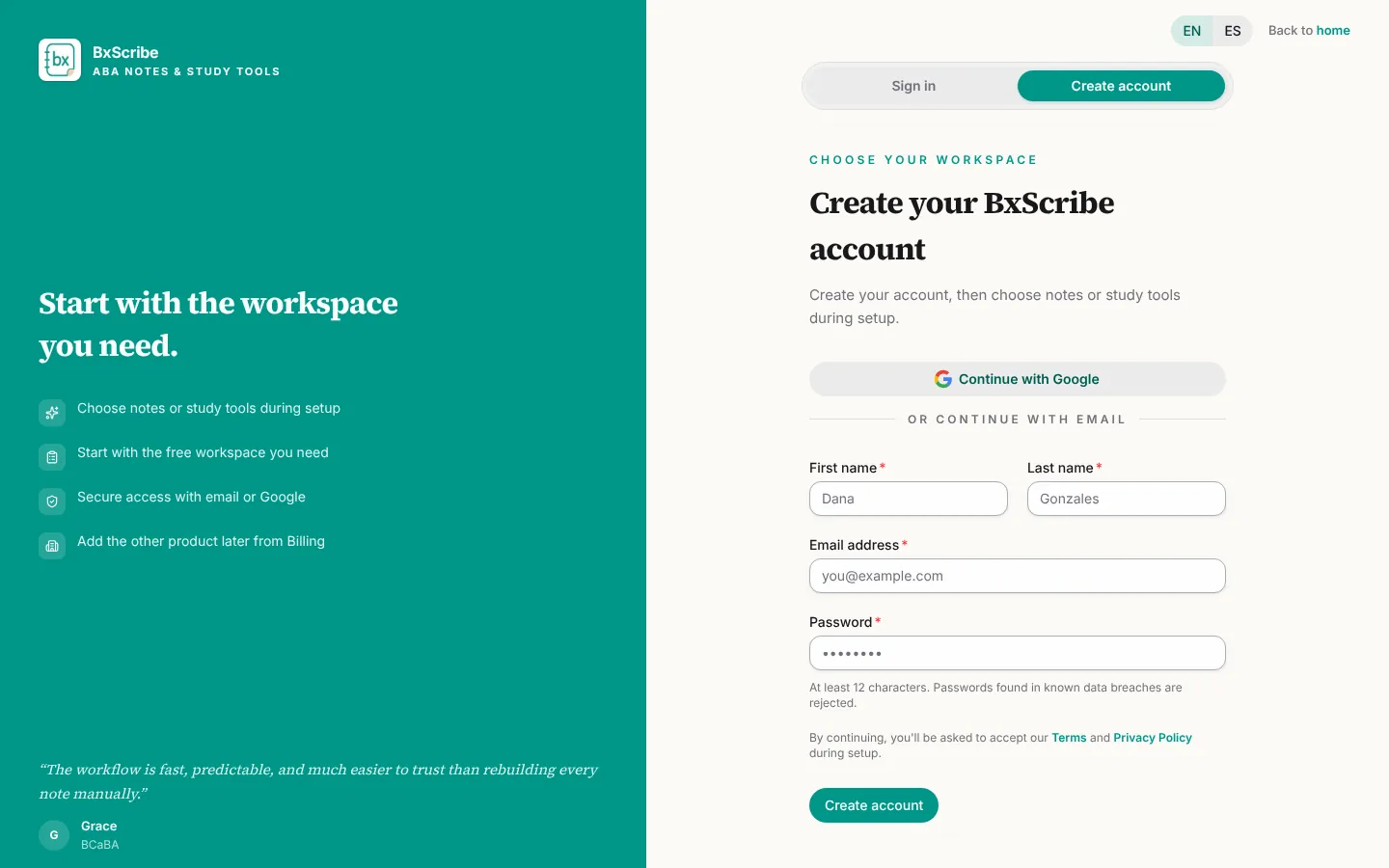
Go to bxscribe.com and choose Get started, or open the sign-in page and switch to the Create account tab. You can sign up with Google or with your name, email address and a password.
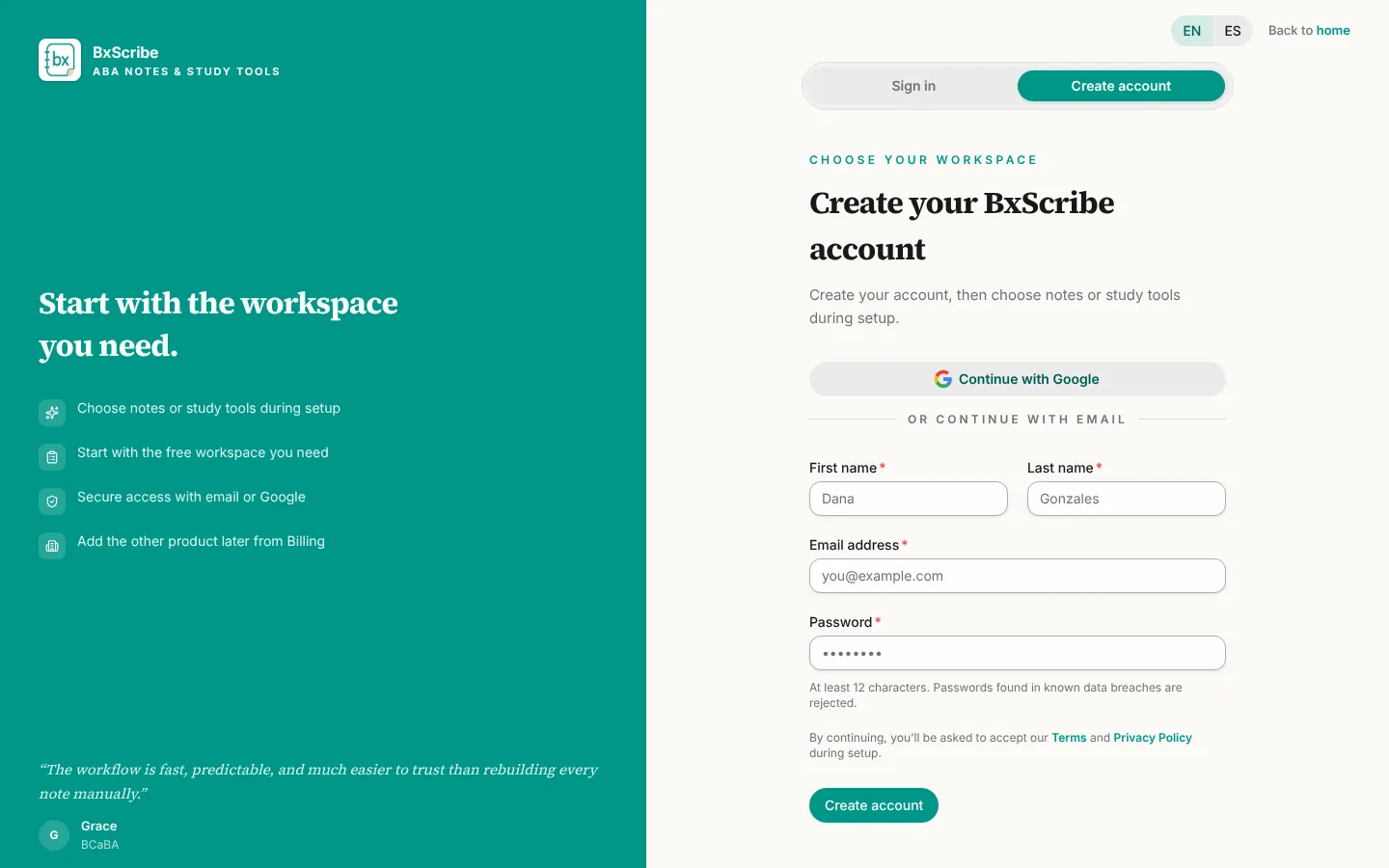
- Choose Continue with Google, or fill in First name, Last name, Email address and Password.
- Use a password of at least 12 characters. Passwords found in known data breaches are rejected.
- Select Create account. We send a verification link to your email.
- Open the link. It confirms your address and signs you in.
Sign in, two-factor and password resets
Sign in with your email and password, or with Continue with Google. If you turned on two-factor sign-in, enter the 6-digit code from your authenticator app; tick Trust this device for 30 days to skip the code on that browser.
Forgot your password? Select Forgot password?, enter your email and choose Send reset link. Reset links work for 1 hour, and resetting signs you out everywhere else.
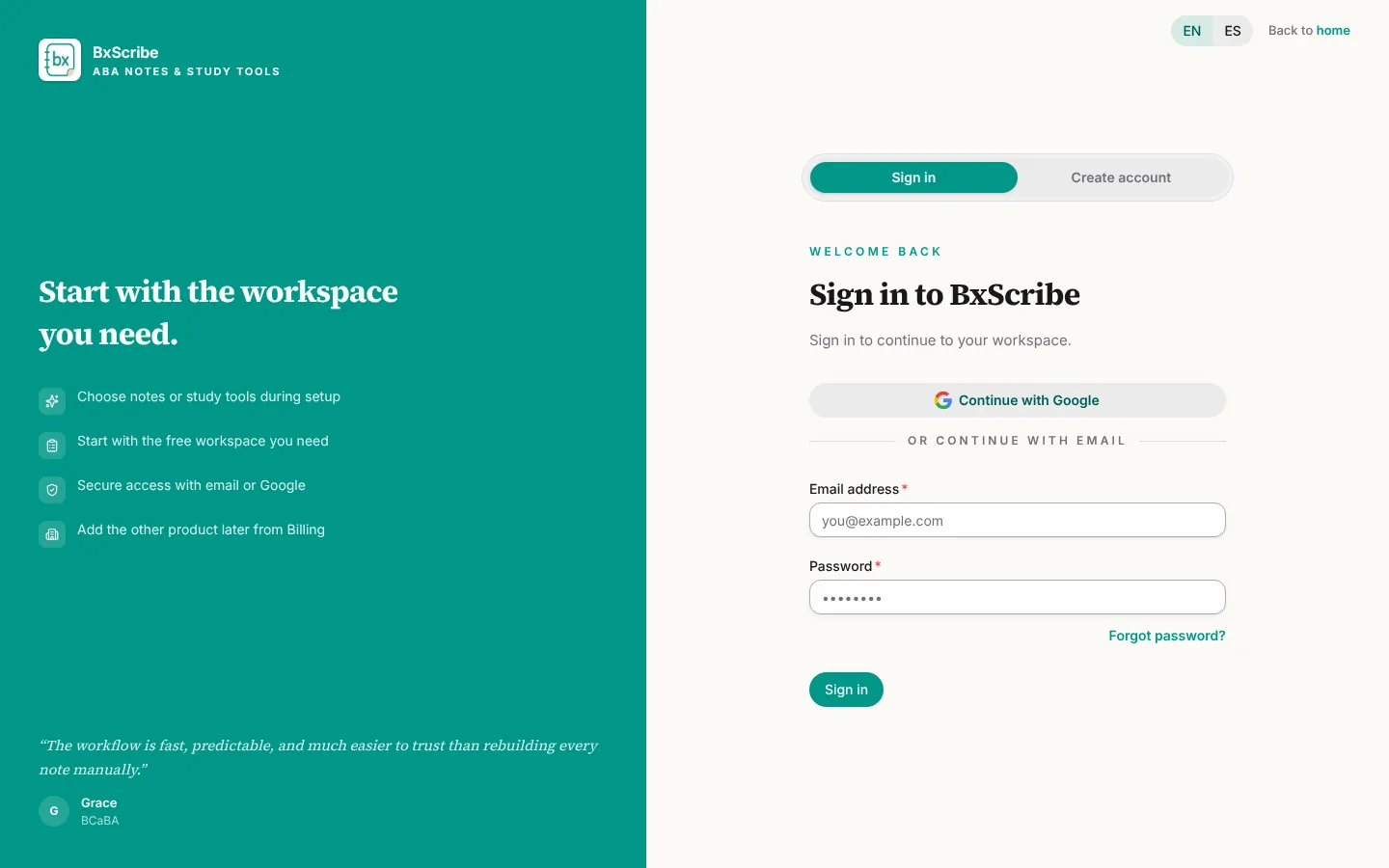
- After 10 failed attempts the account is locked for 15 minutes.
- You're signed out after an hour without activity, and every session ends 24 hours after sign-in.
- Accounts created with Google have no password until you set one from Settings → Security.
Complete onboarding
The first time you sign in, a short setup runs before the dashboard opens. The Notes path has four steps; the Study path has three.
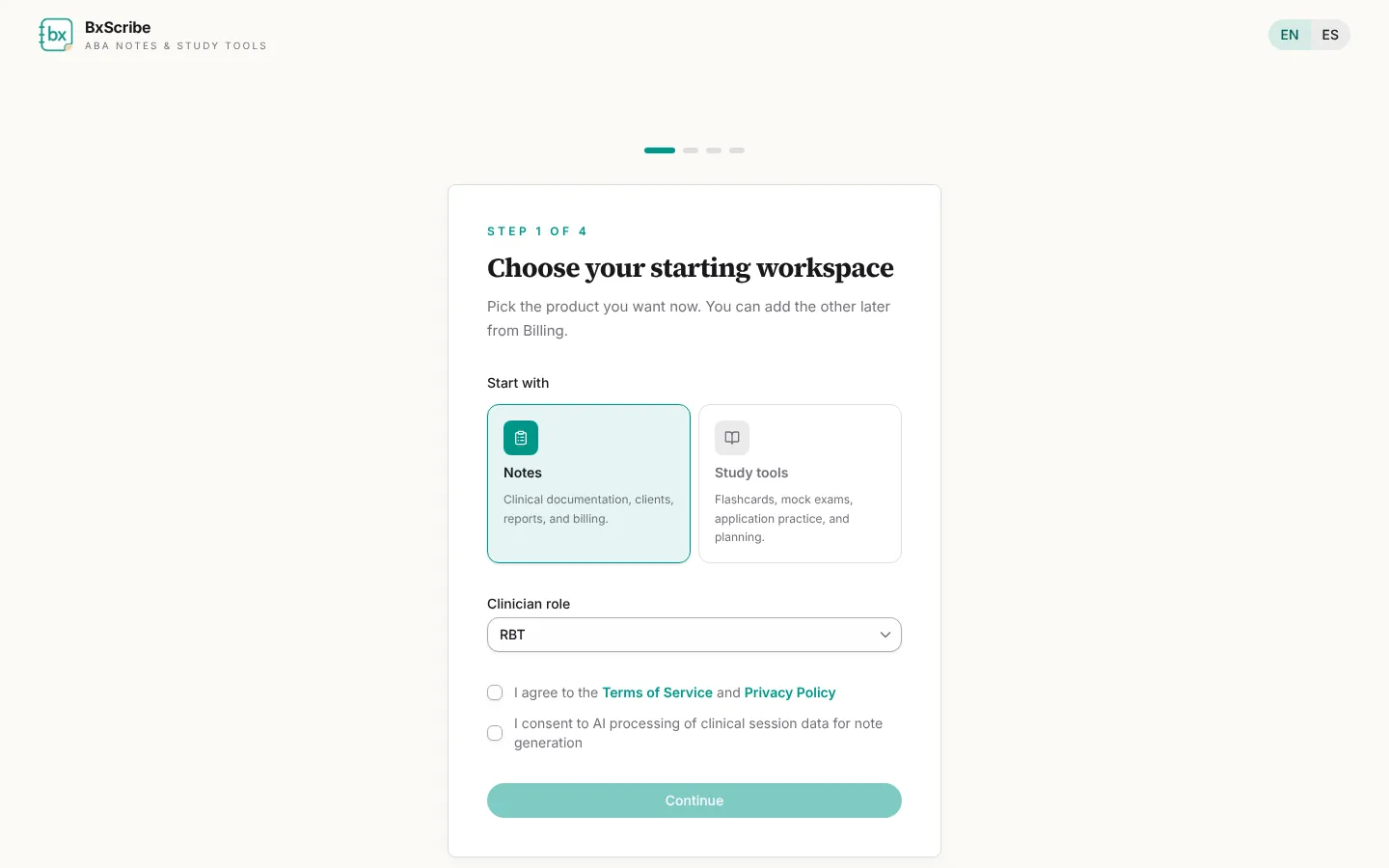
- Choose your starting workspace: Notes (documentation, clients, reports and billing) or Study tools (flashcards, mock exams and planning). You can add the other product later from Billing.
- Pick your clinician role (RBT, BCaBA or BCBA), tick the Terms of Service box and the AI-processing consent box, then select Continue.
- Tell us about your practice: where you primarily work and your typical session length. These become your note defaults.
- Add your first client (optional): a name or initials, a primary diagnosis and a few treatment goals. Select Add client & continue, or Skip for now.
- On the final screen choose Generate your first note or Go to dashboard.
Personal and agency workspaces
Every account starts with a personal workspace. You join an agency workspace by accepting an invitation, or by buying an agency plan and creating the agency from the Team page.
When you belong to more than one workspace, switch between them with the workspace switcher at the top of the sidebar. Clients, notes, plan limits and billing all follow the workspace you're in.
Accepting an agency invitation
Agency invitations arrive by email and work for 14 days. The link shows who invited you and the role you'll have.
- Open the invitation link.
- If you're new, choose Create your account; your email is filled in and locked to the invited address. If you already have an account, choose I already have an account.
- After signing in, select Join to add the agency to your workspace switcher.