Install the extension
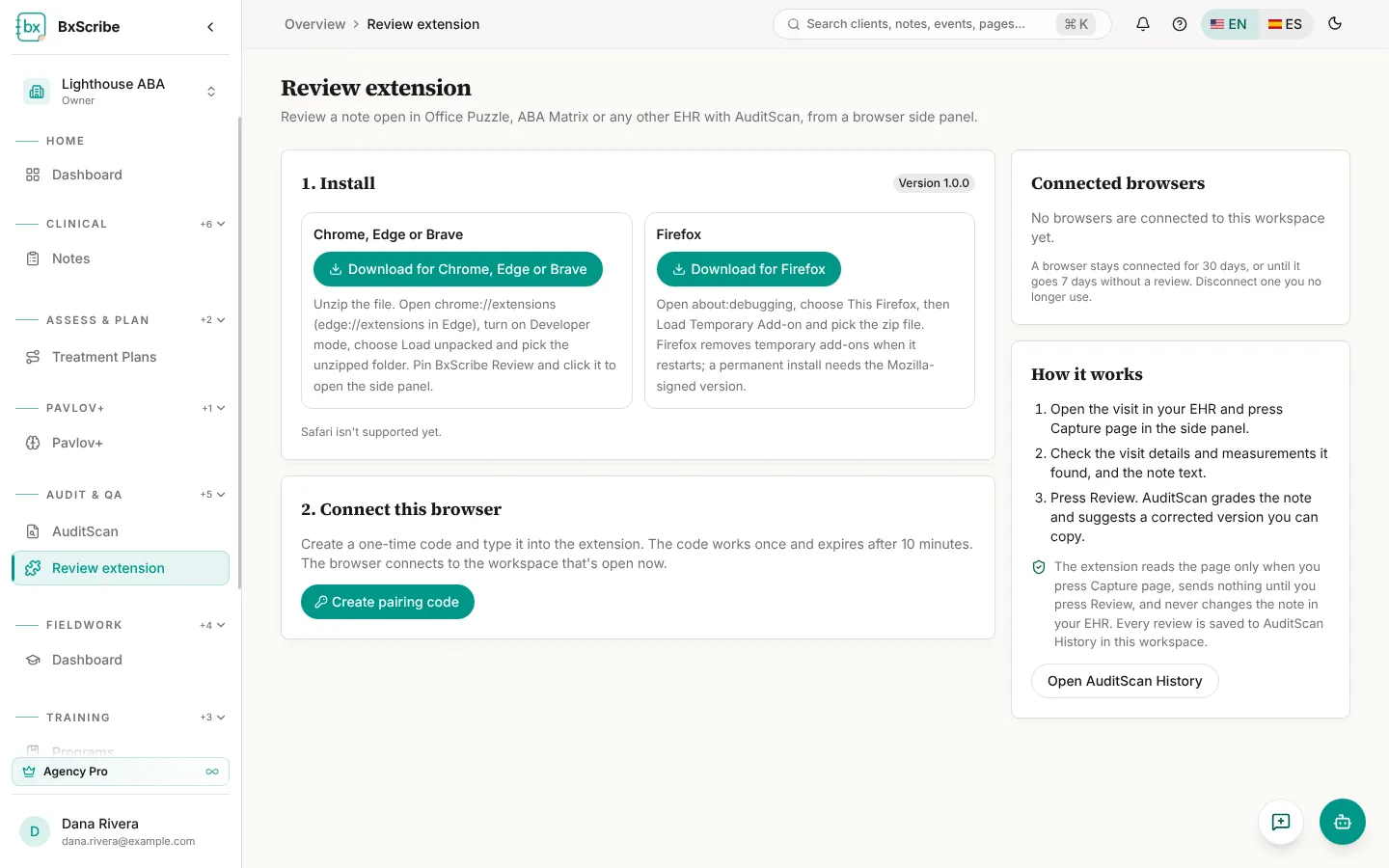
Open Review extension in the Audit & QA group. The extension works in Chrome, Edge, Brave and Firefox with Office Puzzle, ABA Matrix and other EHRs. It never changes anything in your EHR.
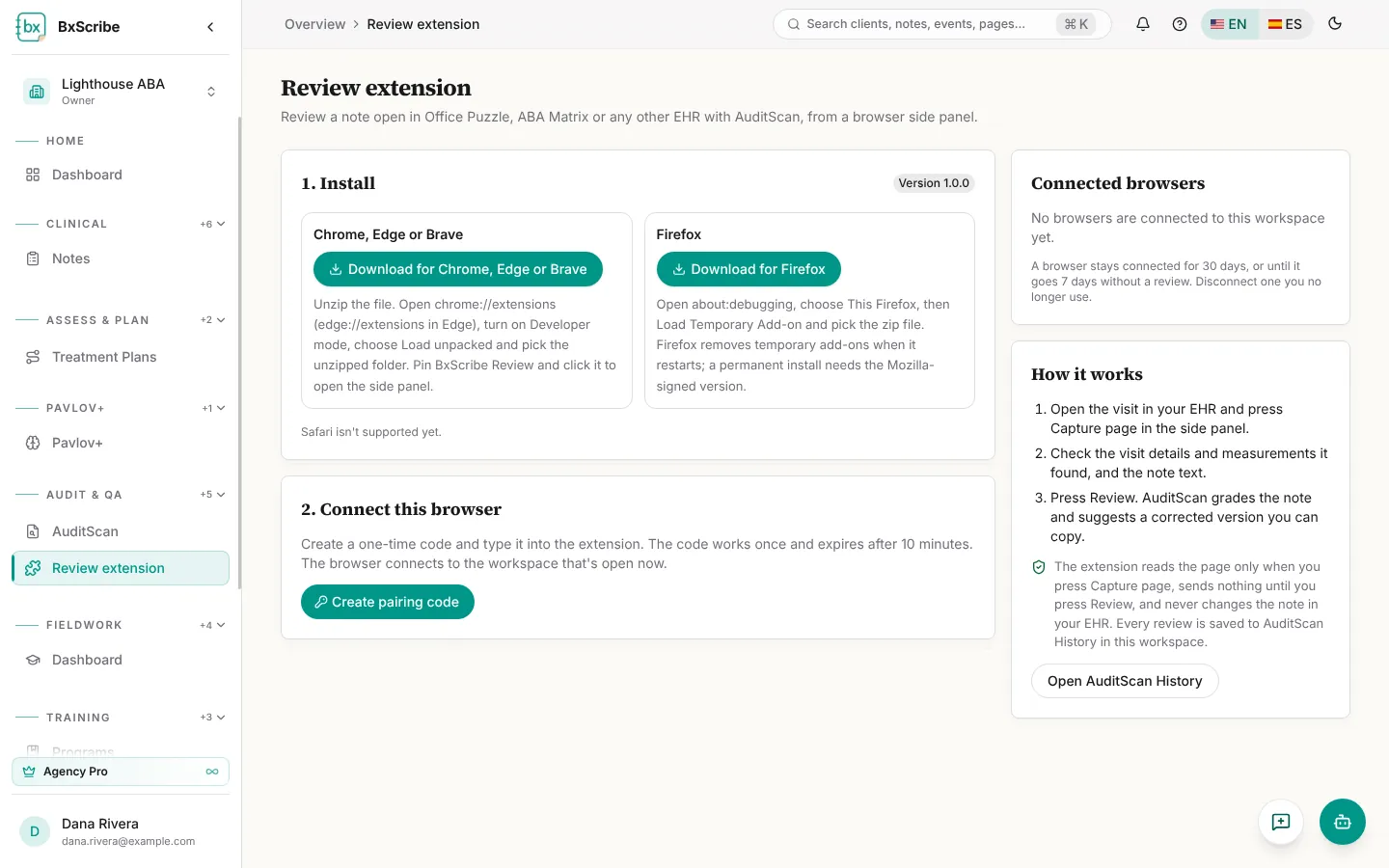
- Select Download for Chrome, Edge or Brave and unzip the file.
- Open chrome://extensions (or edge://extensions), turn on Developer mode, choose Load unpacked and pick the folder.
- Pin BxScribe Review and click it to open the side panel.
- In Firefox, use Download for Firefox, then about:debugging → This Firefox → Load Temporary Add-on.
Connect your browser
Select Create pairing code on the web page and type the 8-digit code into the extension with a name for the browser. Codes work once and expire after 10 minutes. The browser connects to the workspace you're in, stays connected for 30 days, and is disconnected after 7 days without a review. Connected browsers are listed on the page with Disconnect.
Review a note
- Open the visit in your EHR and select Capture page. Highlight text first to capture only that part.
- Confirm each visit detail (client, date, times, units, CPT, provider, place of service, signature, data collection) as Found or Not found.
- Choose the note type and select Review documentation.
- Read the score, verdict and Start here list, then Copy correction or Open the full review in BxScribe.